# Lattice
## Overview
Lattice is **a cloud-based performance management solution for HR professionals across multiple industries**. Businesses and enterprise-level corporations can customize the solution to suit their requirements. Core functionalities include performance review and goal management.
## \*\*API Information \*\*
The Base URL used for the Lattice connector is . More information can be found on their main [API documentation (v1.0)](https://developers.lattice.com/reference/introduction) site.
## Authentication
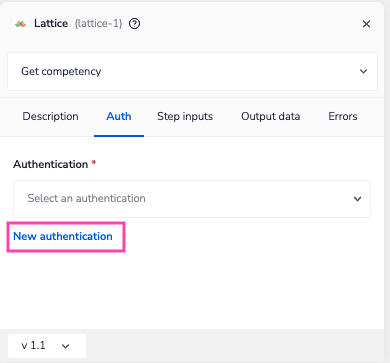
Within the builder, click on the Lattice connector to display the connector properties panel. Select the 'Auth' tab and click the 'New authentication' button.
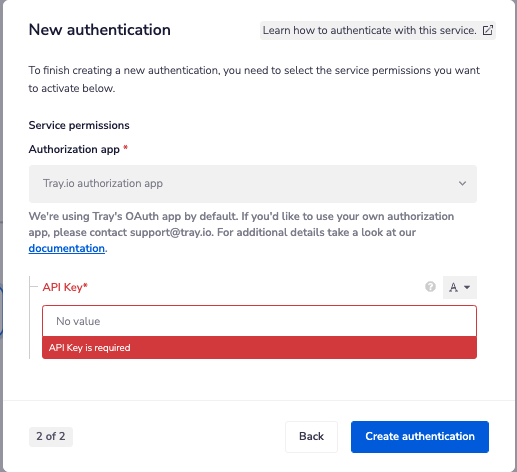
In the Tray.io authentication pop-up modal, name the authentication in a way that will quickly identify it within a potentially large list. For example, whether it is a Sandbox or Production auth, etc.
Consider who/ how many people will need access to this authentication when choosing where to create this authentication ('Personal' or 'Organisational').
The second page asks you for your 'API Key'.
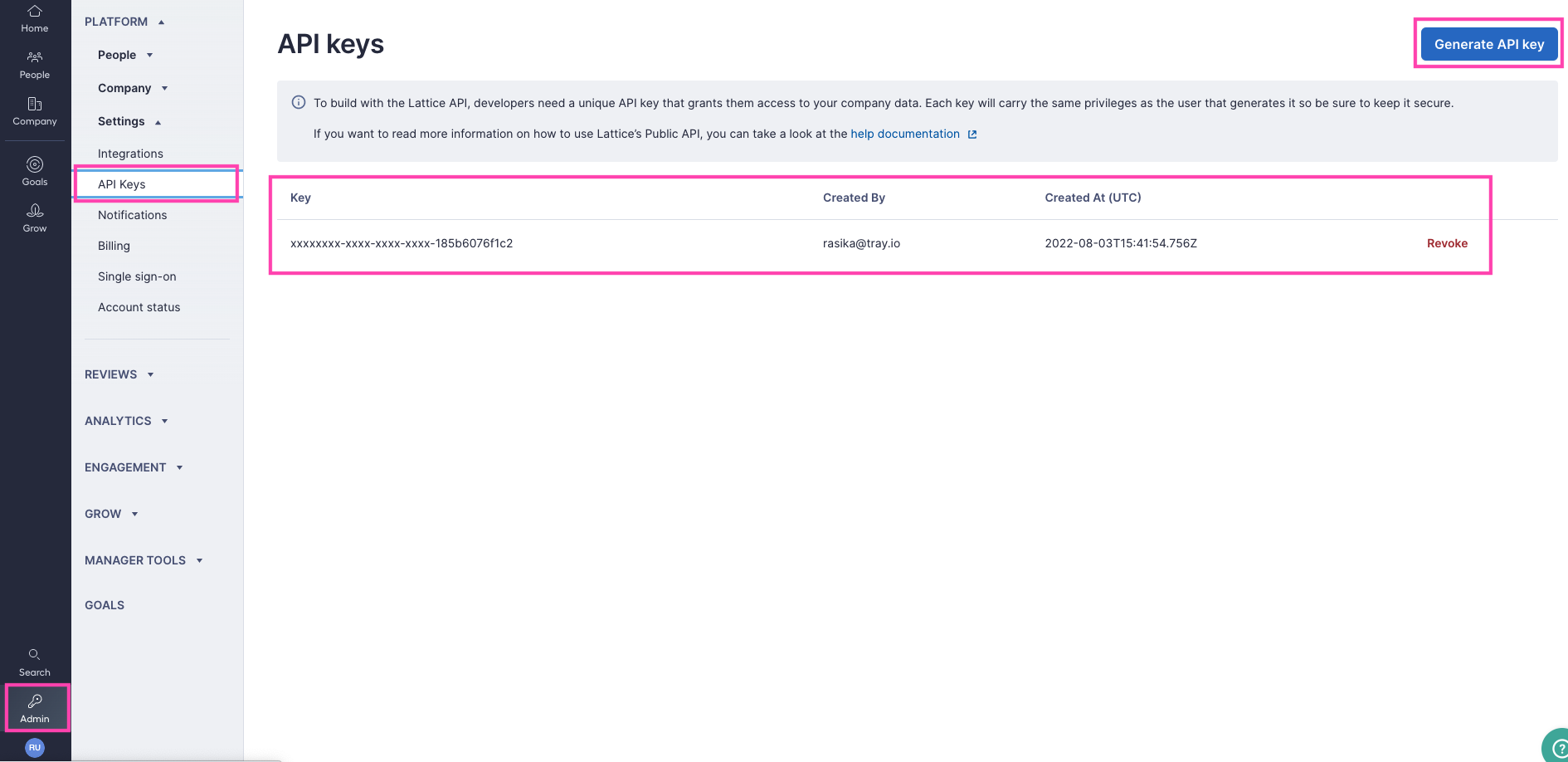
To get these fields, head to the Lattice dashboard. Click on the 'Admin' icon from left bottom corner. Select 'Settings' > 'API Keys'.
On the API Keys page yo can generate the API key suing the 'Generate API Key' button.
> **Info:** Make sure to store the API key in a safe location. It will be shown only once.
Once you have added these fields to your Tray.io authentication pop-up window, click the 'Create authentication' button.
Your connector authentication setup should now be complete.
## Using the Raw HTTP Request ('Universal Operation')
As of **version 1.1**, you can effectively create your own operations.
This is a powerful feature that you can use when there is an endpoint in Lattice that is not used by any of our operations.
To use this, you will first of all need to research the endpoint in the [Lattice API documentation](https://developers.lattice.com/reference/introduction) v1.0 to **find the exact format** that Lattice will be expecting the endpoint to be passed in.
For example, say that the **List custom attributes** operation did not exist in our Lattice connector, and you wanted to use this endpoint. You would use the
Lattice API docs to find the relevant endpoint - \*\*\*which in this case is a ***`*GET*`*** request called: ***`https://api.latticehq.com/v1/user/``{id}``/customAttributes`***. \*\*\*
More details about this endpoint can be found [here](https://developers.lattice.com/reference/api_user_customattributes).
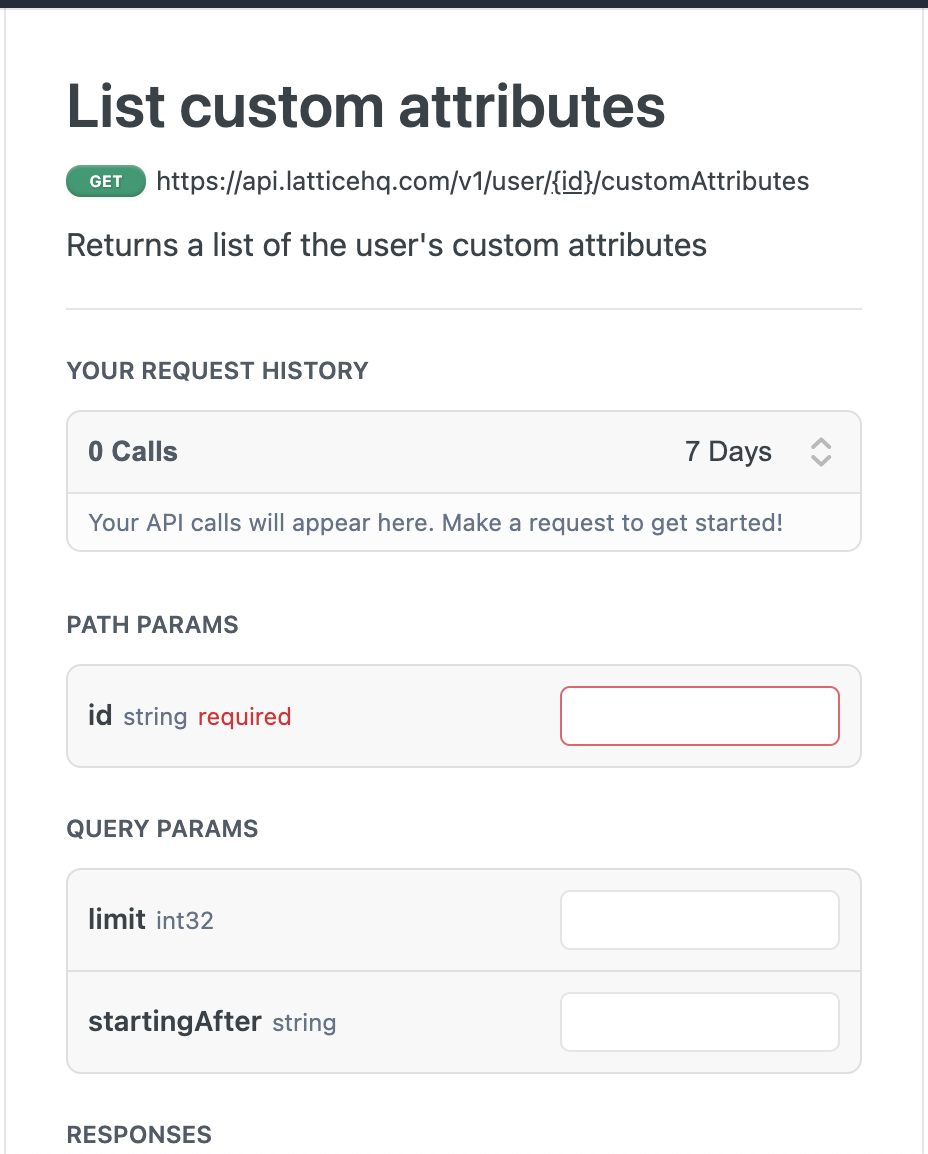
Based on the information provided in the above API call doc, you need to configure the following attributes on your Tray platform:
* **Method:** GET
* \*\*URL: \*\*\* \*
* \*\*Full URL: \*\*/customAttributes
* \*\*Headers: \*\*Accept: application/json
* \*\*Body Type: \*\*none
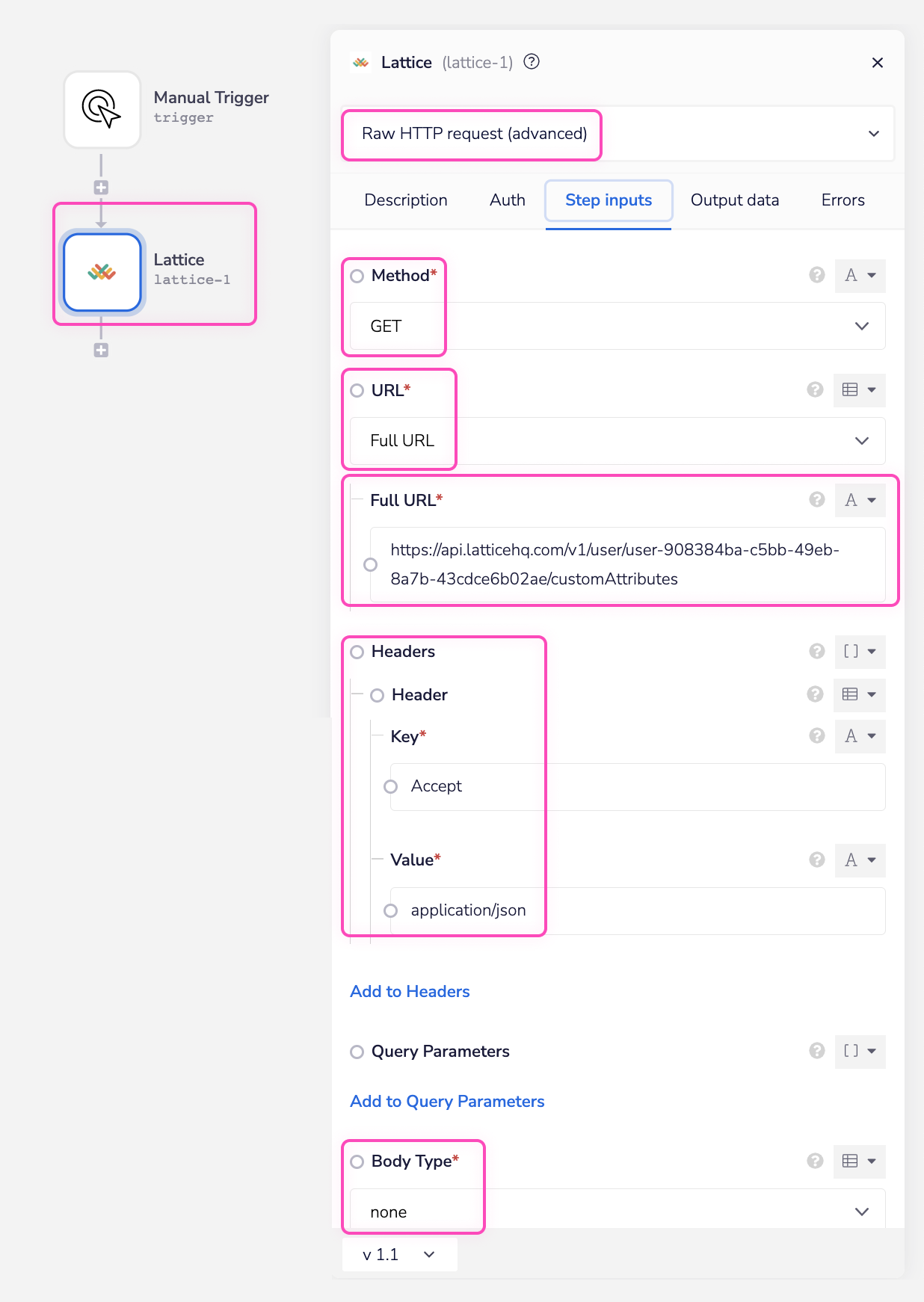
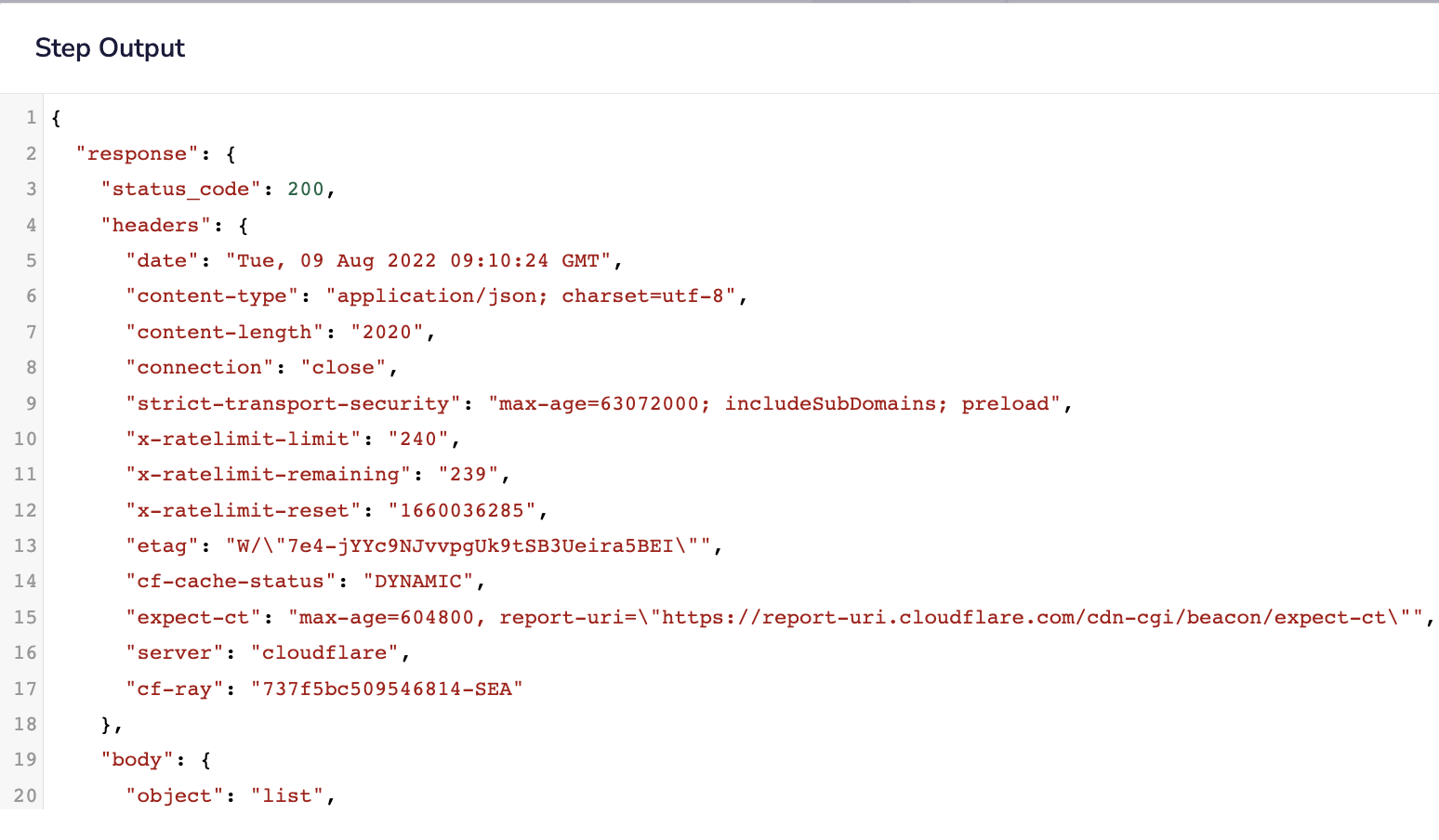
Once the API call is executed successfully, you should get the following results:
## Available Operations
The examples below show one or two of the available connector operations in use.
Please see the [Full Operations Reference](#operationsFull) at the end of this page for details on all available operations for this connector.
## Example Usage
> **Info:** **TRAY POTENTIAL:** Tray is extremely flexible. By design there is no fixed way of working with it - you can pull whatever data you need from other services and work with it using our core and helper connectors.
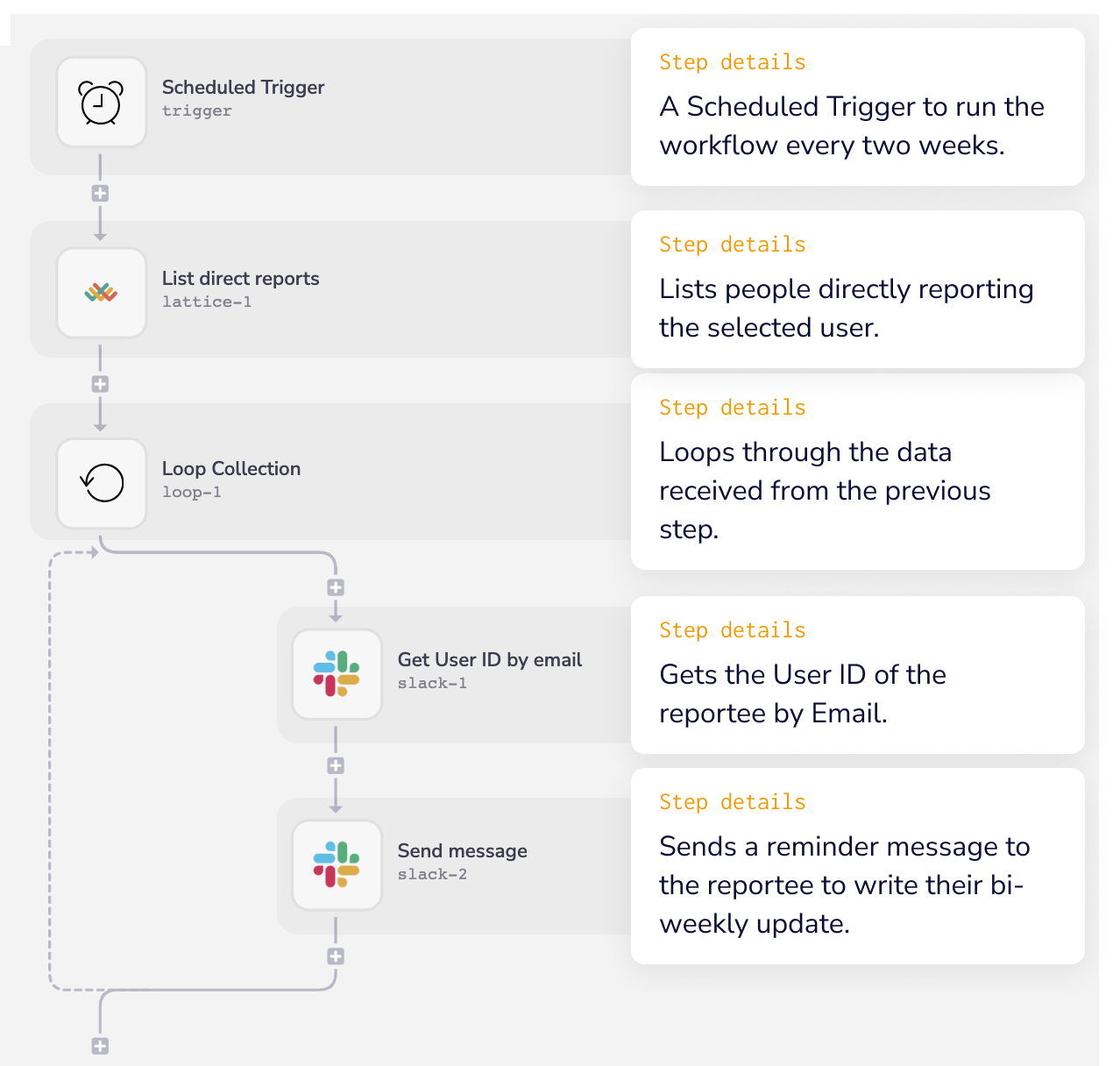
This workflow uses a scheduled trigger, which fires the workflow every two weeks.
Here, the Lattice connector fetches a list of people directly reporting a particular user and sends a reminder to them using the Slack connector to write their bi-weekly update on Lattice.

The overall logic of the workflow is:
* The workflow is triggered by a **scheduled trigger** that runs every two weeks.
* **Lattice** lists people directly reporting the selected user.
* **Loops through** the received list of reportees.
* **Slack** gets the **User ID of the reportees** by Email.
* In the end, a **reminder message is sent to the reportees** to write their bi-weekly update.
The completed workflow and results look like this:
### Step-by-step Explanation
### 1 - Scheduled Trigger
The Scheduled Trigger runs every two weeks. This can be tuned to run more or less often.

### 2 - List direct reports
The step uses the 'List direct reports' operation to list people directly reporting the selected user.


### 3 - Loop Collection
**Loops through** the data received from the previous step.

### 1 - Get User ID by email
Gets the **User ID of the reportees** based on their Email address received from the **List direct reports** step.


### 2 - Send message
Using the Slack ID of the reportee, a reminder message is sent to write their bi-weekly update.


> **Info:** \*\*BEST PRACTICES: \*\*Whenever you do decide to create your own workflow, be sure to check out some of our key articles such as:- [Using callable workflows](https://tray.ai/documentation/platform/automation-integration/building-workflows/composable-workflows/calling-other-workflows)
> - [Pagination](https://tray.ai/documentation/platform/automation-integration/advanced-use-cases/batching-queueing/pagination)
> - [Data transformation guide](https://tray.ai/documentation/platform/automation-integration/building-workflows/mapping-data/data-transformation-guide)