# SurveyMonkey Apply
SurveyMonkey Apply is a platform designed to help organizations manage application processes for grants, scholarships, fellowships, and other types of programs that require a formal application process.
## Overview
SurveyMonkey Apply is a platform designed to help organizations manage application processes for grants, scholarships, fellowships, and other types of programs that require a formal application process.
### API information
The SurveyMonkey Apply connector has the following Base URL: **\**. More information can be found on their main API documentation \ site. Details regarding their API limitations can be found \.
## Authentication
When using the SurveyMonkey Apply connector for the first time, you need to create a new authentication.
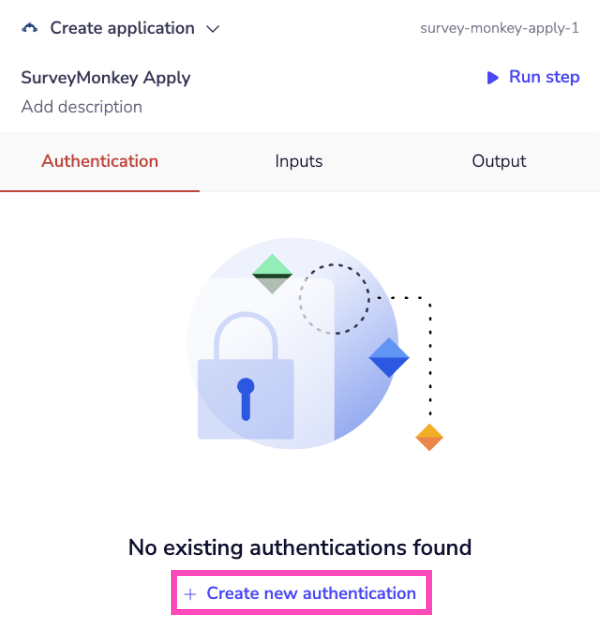
Name your authentication and specify the type ('Personal' or 'Organizational').
The next page asks you for Client ID, Client Secret, Access Token, Refresh Token, Base URL, and Scopes .
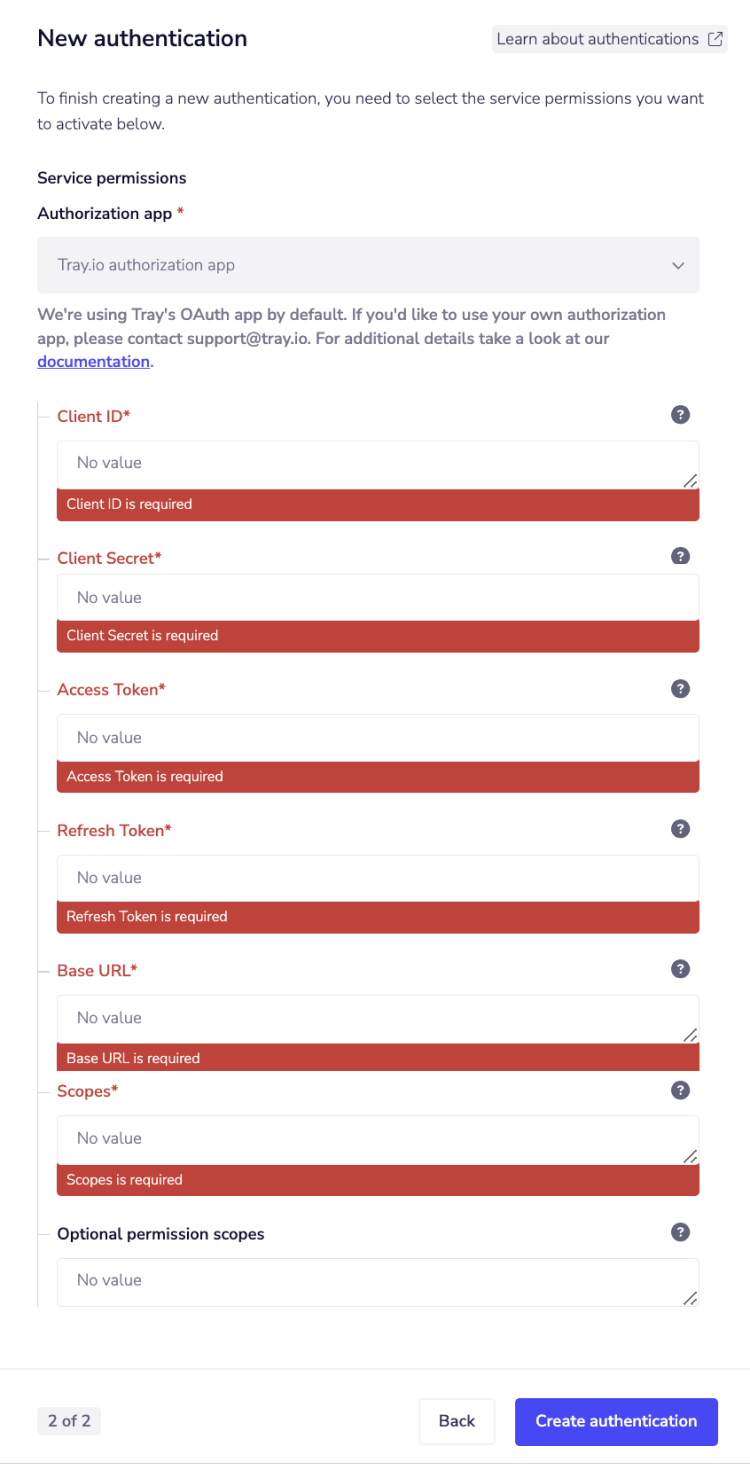
To get this field/these fields,
Once you have added this field to your Tray authentication pop-up window click the **Create authentication** button.
Go back to your settings authentication field (within the workflow builder properties panel), and select the recently added authentication from the available dropdown options.
Your connector authentication setup is now complete.