
Overview
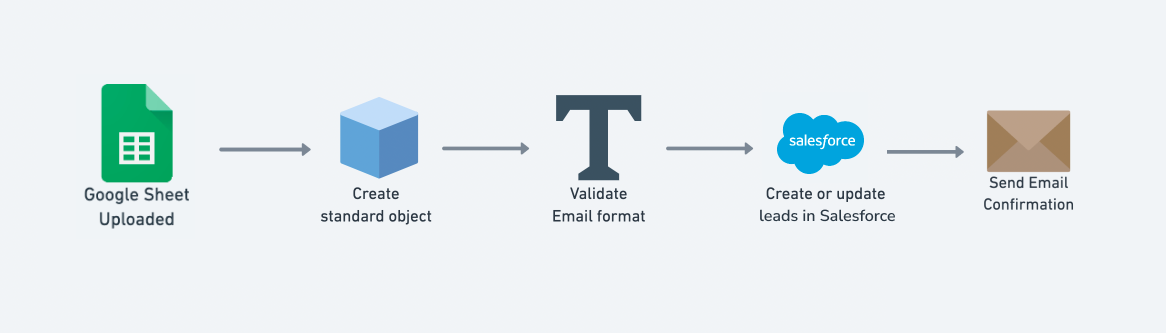
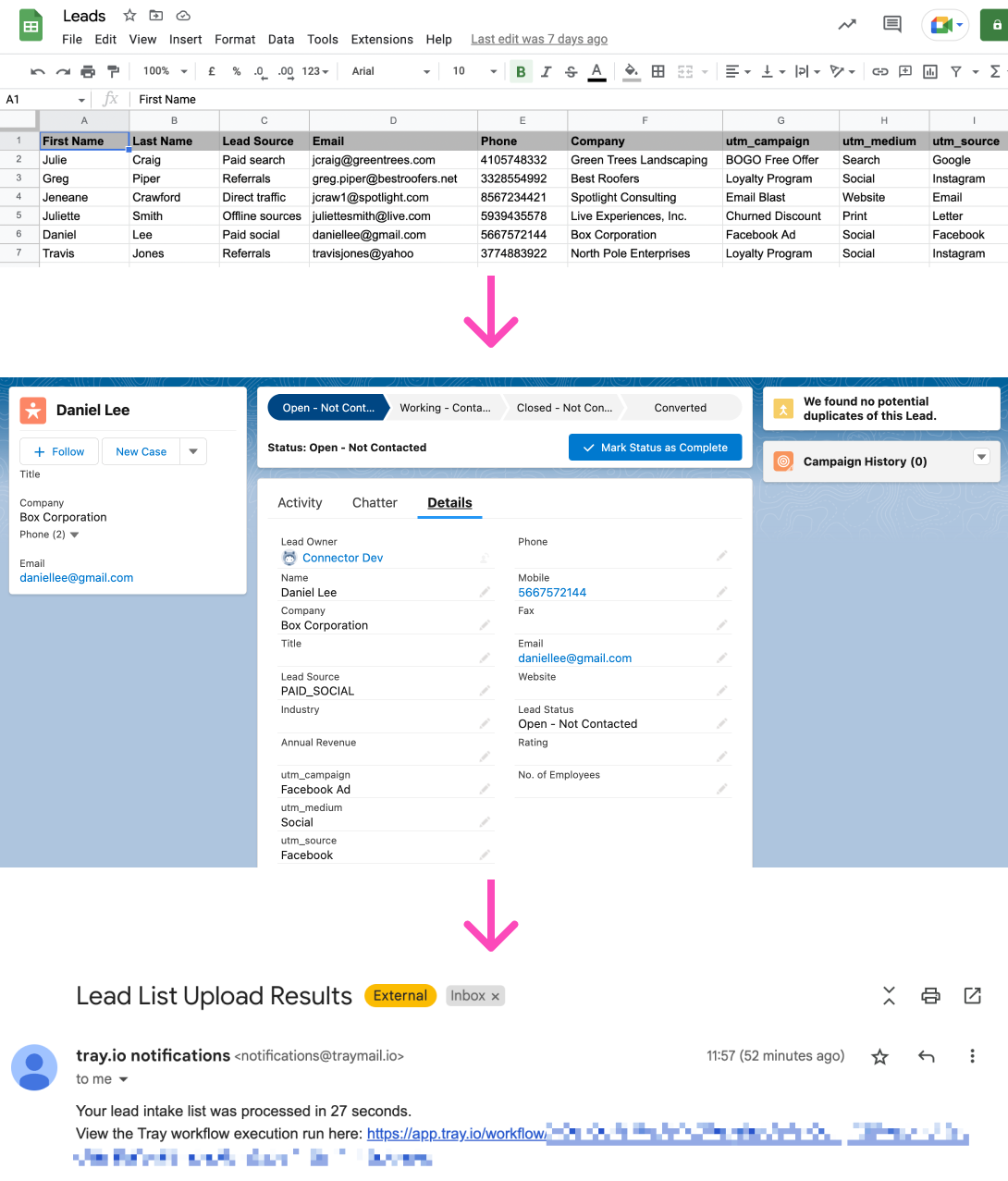
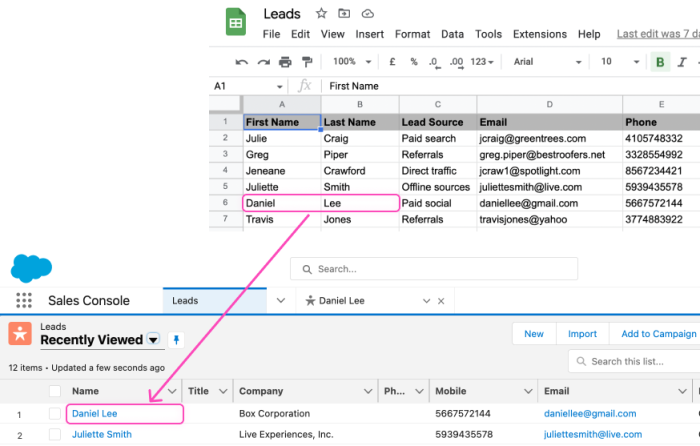
The purpose of this workflow is to capture leads from a Google Sheet and use these to create and update contacts in Salesforce
This workflow is fired every time a Google sheet ID is entered into a Tray Form:
Prerequisites
To implement this workflow, you will need the following:
- API credentials for Google Sheets and Salesforce
- A Google Sheet with the correct column setup as per the template found here
Getting Live
Click 'Use Template' to deploy the template in your chosen Workspace. Then take the following steps to configure the workflow and start submitting leads for processing:
The workflow will then start the process of pulling the leads into Salesforce.
Key workflow steps
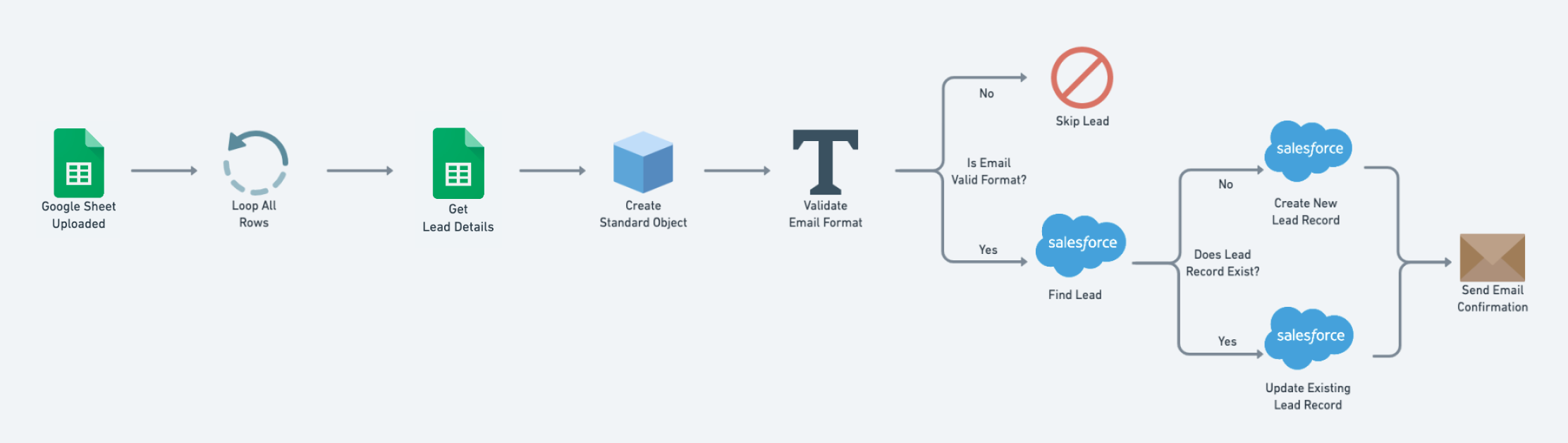
The following diagram gives a simplified breakdown of the key steps in the workflow:
Data mapping
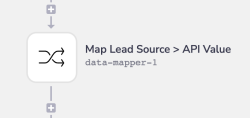 The workflow uses the Data Mapper to dynamically respond to the 'Lead Source' in the Google Sheet and maps it to a machine-readable format:
Organic Search --> ORGANIC_SEARCH
Paid Search --> PAID_SEARCH
Email marketing --> EMAIL_MARKETING
etc.
This can then be passed to the Salesforce 'Lead Source' when creating / updating contacts:
Standardization
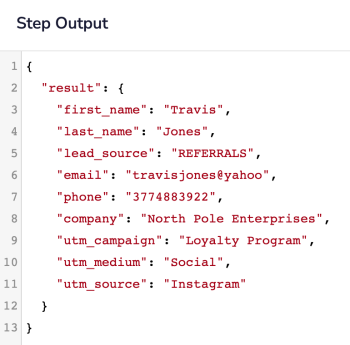
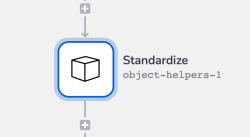 This Object Helpers step transforms the Google Sheet column headers into a standard object with fields in the following format:
First Name --> first_name
Last Name --> last_name
Lead Source --> lead_source
etc.
Note that the actual value for Lead Source ('Paid Search', 'Referrals' etc.) is mapped according to the data mapping section above.
For each lead we will then have a simple object which can be easily accessed by later Salesforce steps using jsonpaths such as $.steps.object-helpers-1.result.first_name:
Email validation
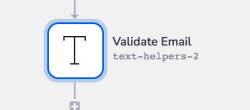 The lead’s email address is validated for the appropriate
 user@domain.com format
If the email address is invalid, the failure status will be written to the appropriate column within the Google Sheets lead sheet:

Create / Update contacts
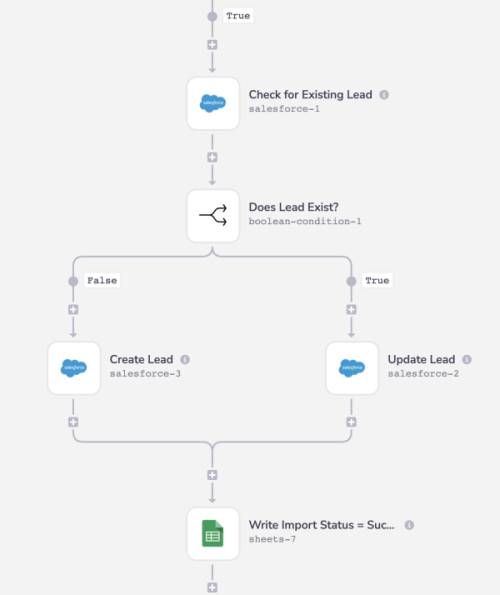 A search is made for an existing contact in Salesforce using the lead’s email address as the unique identifier.
If a Salesforce contact does exist, the contact record is updated and the status of 'Success' is added to the 'Import Status' column in the Google Sheet.
If a Salesforce contact does not exist, a new contact record is created and the status of 'Success' is added to the 'Import Status' column in the Google Sheet.
A search is made for an existing contact in Salesforce using the lead’s email address as the unique identifier.
If a Salesforce contact does exist, the contact record is updated and the status of 'Success' is added to the 'Import Status' column in the Google Sheet.
If a Salesforce contact does not exist, a new contact record is created and the status of 'Success' is added to the 'Import Status' column in the Google Sheet.