
Overview
The purpose of this workflow is to capture leads from a Google Sheet and use these to create and update persons in Pipedrive.
This workflow is fired every time a Gsheet ID is entered into a Tray Form:

Prerequisites
To implement this workflow, you will need the following:
- API credentials for Google Sheets and Pipedrive
- A Google Sheet with the correct column setup as per the template found at https://bit.ly/lead-intake-gsheet-pipedrive
Getting Live
Click 'Use Template' to deploy the template in your chosen Workspace. Then take the following steps to configure the workflow and start submitting leads for processing:
The workflow will then start the process of pulling the leads into Pipedrive.
End Result

Key workflow steps
The following diagram gives a simplified breakdown of the key steps in the workflow:

Email validation
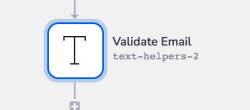 The lead’s email address is validated for the appropriate user@domain.com format
If the email address is invalid, the failure status will be written to the appropriate column in the lead sheet:
The lead’s email address is validated for the appropriate user@domain.com format
If the email address is invalid, the failure status will be written to the appropriate column in the lead sheet:

Standardization
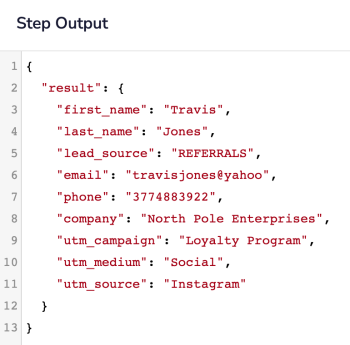
 This Object Helpers step transforms the Google Sheet column headers into a standard object with fields in the following format:
First Name --> first_name
Last Name --> last_name
Lead Source --> lead_source
etc.
For each lead we will then have a simple object which can be easily accessed by later pipedrive steps using jsonpaths such as $.steps.object-helpers-1.result.first_name:
Create / Update persons
 A search is made for an existing person in Pipedrive using the lead’s email address as the unique identifier.
If a Pipedrive person does exist, the person record is updated and the status of 'Success' is added to the 'Import Status' column in the Google Sheet.
If a Pipedrive person does not exist, a new person record is created and the status of 'Success' is added to the 'Import Status' column in the Google Sheet.
A search is made for an existing person in Pipedrive using the lead’s email address as the unique identifier.
If a Pipedrive person does exist, the person record is updated and the status of 'Success' is added to the 'Import Status' column in the Google Sheet.
If a Pipedrive person does not exist, a new person record is created and the status of 'Success' is added to the 'Import Status' column in the Google Sheet.