JSONata functions
Use JSONata expressions directly in step input fields to transform data without adding a workflow step
JSONata functions overview
JSONata functions let you run a JSONata query directly on data being pulled into a workflow step.
JSONata functions use version 1.8.6, the same version as the JSON Transformer connector. See the JSONata documentation for the full language reference.
Tray's inline functions already cover common transformations such as formatting a date or trimming a string. JSONata handles the more advanced shaping that would otherwise need a dedicated JSON Transformer step: restructuring objects, filtering and grouping arrays, and running calculations across a payload. A JSONata function can also return an array or an object, where inline functions are limited to string, number and boolean values. Its input can combine data from several steps, so you do not need an extra step just to bring that data together.
Doing this inline rather than in a separate step means:
- Fewer steps in your workflow.
- Lower task usage.
- Less complexity for you to work with.
The trade-off is lower limits. A JSONata function runs while Tray prepares a step's inputs, so it has less time and fewer resources than a dedicated step. For complex or long-running queries, or very large datasets, use a JSON Transformer step instead.
JSONata functions are aimed at users who are already comfortable with the JSONata query language. For simpler transformations, inline functions are usually the better choice.
Where you can use JSONata functions
JSONata functions are available anywhere inline functions are supported.
In the connector properties panel, select jsonata from the input type drop-down for the field you want to transform:
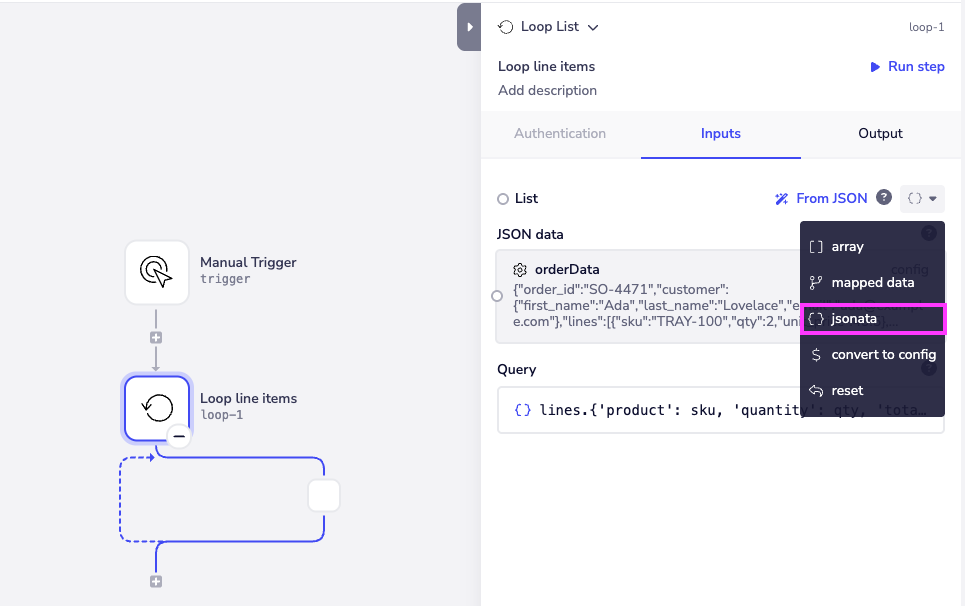
The types offered in this drop-down depend on the field you are working in, so jsonata appears alongside whichever other types that field accepts.
The JSONata editor
Selecting jsonata splits the field into two parts in the properties panel:
- JSON data - the JSON object or array to transform. Map data into this field as you would any other, using data from previous steps or a project config variable. To combine data from more than one source, see Combining data from several sources
- Query - the JSONata expression used to transform that data
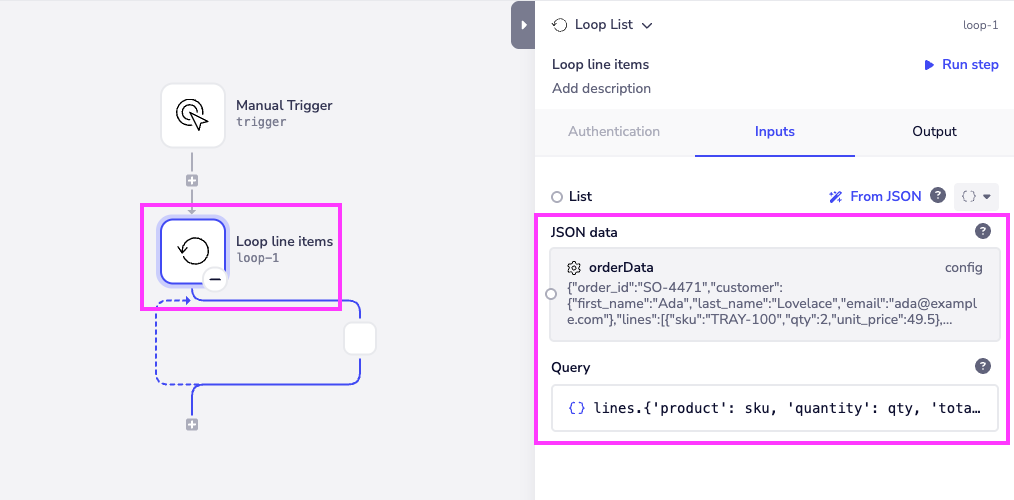
In the example above, the JSON data field is mapped to a project config variable called orderData, which holds the following order:
{
  "order_id": "SO-4471",
  "customer": {
    "first_name": "Ada",
    "last_name": "Lovelace",
    "email": "ada@example.com"
  },
  "lines": [
    { "sku": "TRAY-100", "qty": 2, "unit_price": 49.5 },
    { "sku": "TRAY-250", "qty": 1, "unit_price": 120 },
    { "sku": "TRAY-010", "qty": 4, "unit_price": 9.75 }
  ]
}
The Query field shows a preview of your expression, truncated to fit the panel. Click it to open the Edit JSONata Query modal, where you can see the full expression and edit it in a code editor with JSONata syntax highlighting and line numbers. The editor and the modal are both resizable, so you can work comfortably with longer, multi-line expressions.
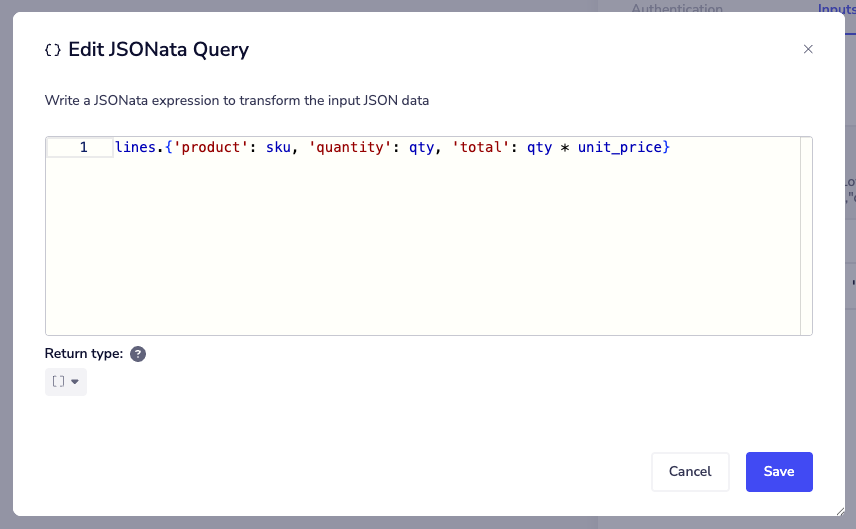
The query shown here reshapes each line item in the order into a new object:
lines.{'product': sku, 'quantity': qty, 'total': qty * unit_price}
Select Save to apply your changes.
Combining data from several sources
By default, the JSON data field takes a single mapped value. If your query needs data from more than one place, such as two different steps, or a step and a config variable, build the JSON data as an object or an array instead.
Use the type selector on the JSON data field to choose one of:
- mapped data - a single mapped value. This is the default
- object - a set of named properties, each holding a mapped value
- array - a list of items, each holding a mapped value
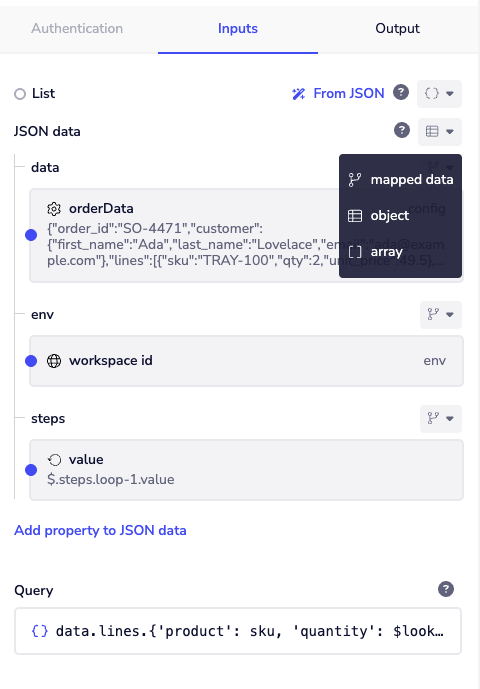
Select Add property to JSON data to add a property to an object. Each property and each item has the same type selector, so you can nest objects and arrays inside each other. Every value must be mapped. The field does not accept typed text or numbers.
In the example above, the JSON data field is an object with three properties:
data- mapped to theorderDataconfig variableenv- mapped to theworkspace idenvironment variablesteps- mapped to$.steps.loop-1.value, the output of a Loop step
Your query reads each property by its name.
The query in this example starts from data.lines, the line items in orderData.
In an array, your query reads each item by its position, starting from zero. For example, $[0] is the first item.
If you add a property or an item but do not map anything into it:
- An empty object property is left out of the JSON data.
- An empty array item is passed as
null. This keeps every later item in the same position, so your query still reads the item it expects.
Return type
JSONata functions support the following return types:
- string
- number
- boolean
- array
- object
The return type is set using the Return type selector at the bottom of the Edit JSONata Query modal, in the same way as for inline functions.
Selecting the appropriate return type ensures values are passed to downstream steps in the expected format. JSONata expressions return non-string values far more often than inline functions do, so it is worth checking this setting whenever your query returns anything other than a string.
As with inline functions, the return types available to you are restricted by the input schema of the field you are working in.
A field that only accepts a string will not offer array or object as a return type.
See Satisfying input schema for more on how schemas constrain what a field will accept.
Validating your query
Your query is checked for syntax errors when you click away from the Query field, and any error is shown in the editor.
If a stored value cannot be read, the editor shows the raw value as read-only instead of splitting it into the two fields. This is deliberate: it prevents the editor from overwriting a value it cannot safely interpret. Correct the raw value to restore normal editing.
Learning JSONata
This page covers the JSONata function itself, not the JSONata query language.
For an introduction to the language, with worked examples using data of the kind you will see in Tray, see the JSON Transformer documentation. It covers extracting data, structuring output, operators, functions, chaining with ~>, variables, and defining your own functions.
These resources are worth having open while you work:
- try.jsonata.org - a sandbox for building and testing queries before moving them into your workflow
- docs.jsonata.org - the full JSONata language reference
- JSONata versions - which version the documentation currently covers
When testing in the sandbox, copy the output data log of the step containing the JSON you want to work with.
Tray log data can vary from what you would get in other tools, usually by adding a key of data or result at the top level of the object.
Troubleshooting
Stack overflow error
The full error reads:
Error evaluating JSONata expression: JSonataException Stack overflow error: Check for non-terminating recursive function. Consider rewriting as tail-recursive. Depth=26 max=25
A JSONata function runs while Tray resolves a step's inputs, so it has tighter limits than the JSON Transformer connector. One of these is depth: a query can nest up to 25 levels. This limits depth, not the size of your data.
The usual cause is a function that calls itself. Each call adds a level, so it soon passes 25.
To fix it:
- Make sure the function has a condition that stops it.
- Make the call to itself the last thing the function does. This is known as tail recursion, and JSONata does not add a level for these calls.
- If the query needs deep recursion, move it into a JSON Transformer step and map its output into your field.
This function adds a level on every call, because it multiplies after the call returns:
(
  $factorial := function($x) { $x <= 1 ? 1 : $x * $factorial($x - 1) };
  $factorial(30)
)
This version carries the running total in a second argument, so the call is the last step:
(
  $iter := function($x, $acc) { $x <= 1 ? $acc : $iter($x - 1, $x * $acc) };
  $factorial := function($x) { $iter($x, 1) };
  $factorial(30)
)
Stack overflow error without recursion
A query with no functions can also hit this error, for example one that loops over 26 or more items.
This is a known issue in the underlying JSONata library with how depth is counted.
Building an array with square brackets, such as [a, b], inside an expression that runs once per item adds to the count and never releases it.
This query returns each person's display name, or their full name if they have none. It has no recursion, but fails on a list of 26 or more items:
$.([displayName, fullName][0])
Replace the array with a condition:
$.(displayName ? displayName : fullName)
If that does not suit your query, use a JSON Transformer step, which does not have this limit.
The two versions handle empty values differently.
If displayName is an empty string or null, the array version returns it as it is. The condition version returns fullName instead.
To keep the array version's behavior, use $exists(displayName) ? displayName : fullName.