Log Streaming
Tray streams workflow logs to an external endpoint, so you can analyse them in a system such as Datadog, Sentry, Redshift, New Relic or Kibana.
This feature is available with the following packages:
- Team (as an optional add-on)
- Enterprise
Introduction
Logs and debugging covers the in-app workflow logs, which show the context of current and past runs for a single workflow.
Log streaming sends that same log data to an external endpoint as runs happen. You analyse it in a system such as Datadog, Sentry, Redshift, New Relic or Kibana, which lets you work across workflows rather than one at a time: filtering and visualising logs to identify patterns of success and failure, time taken, and processing efficiency, by workflow and by individual connector — service connectors as well as core and helper connectors.
This page documents the payload Tray sends for each event type. To switch streaming on, see Setting up log streaming.
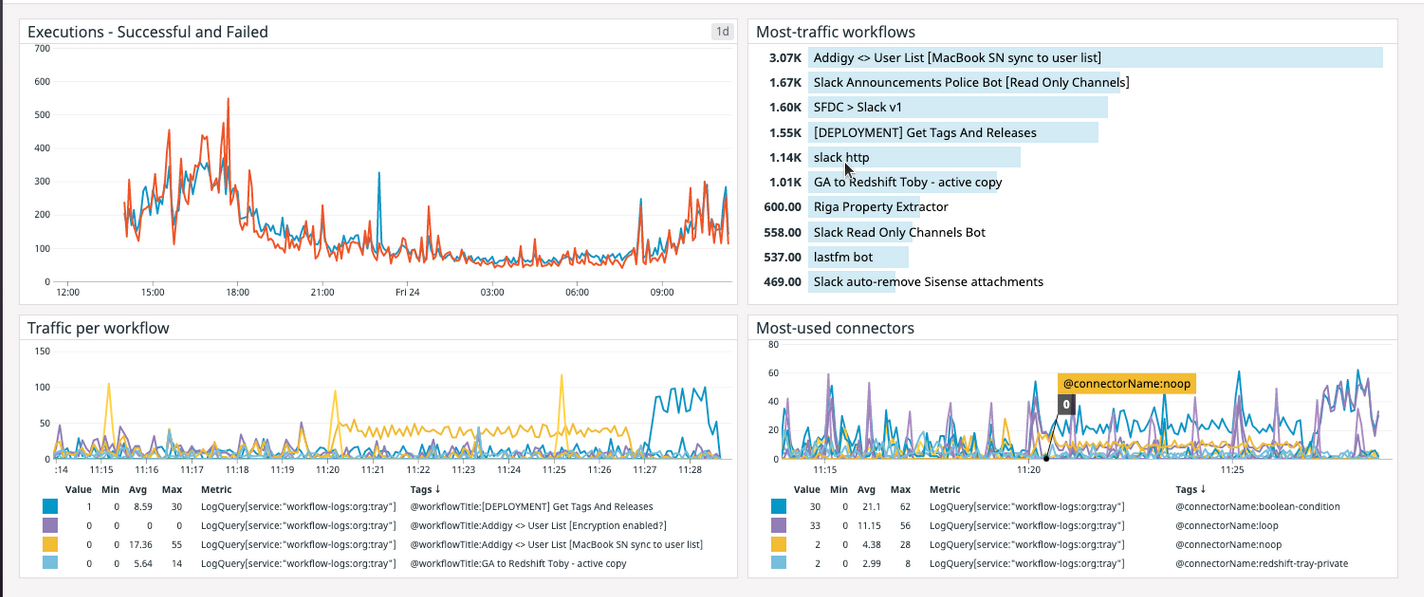
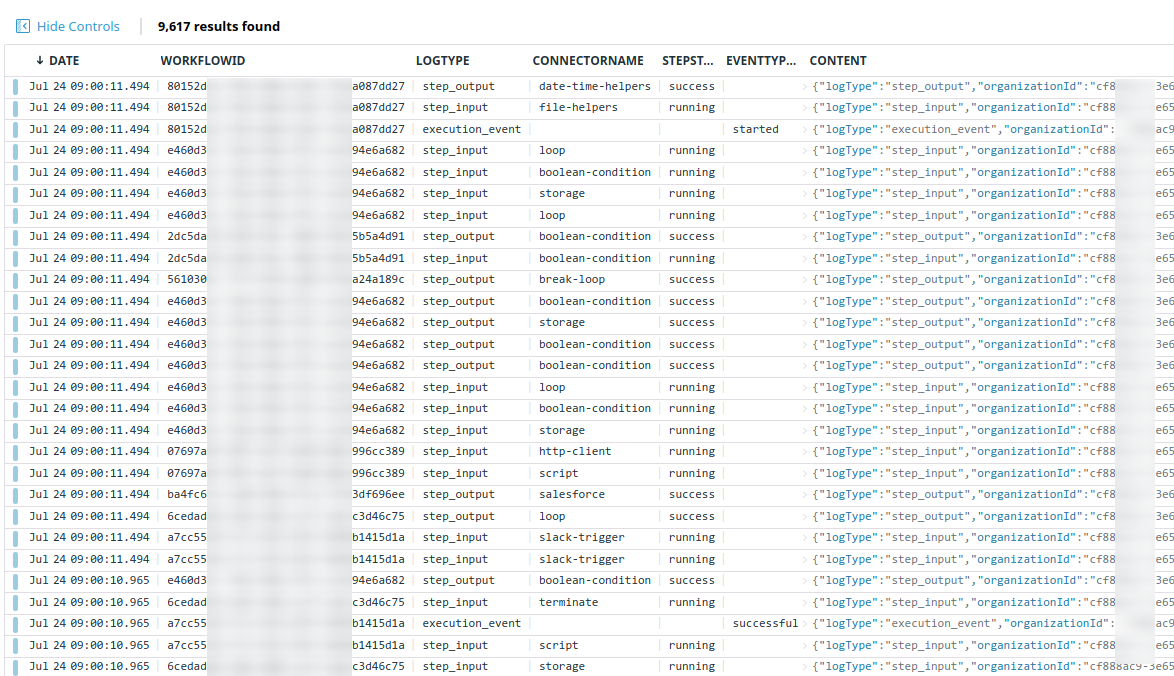
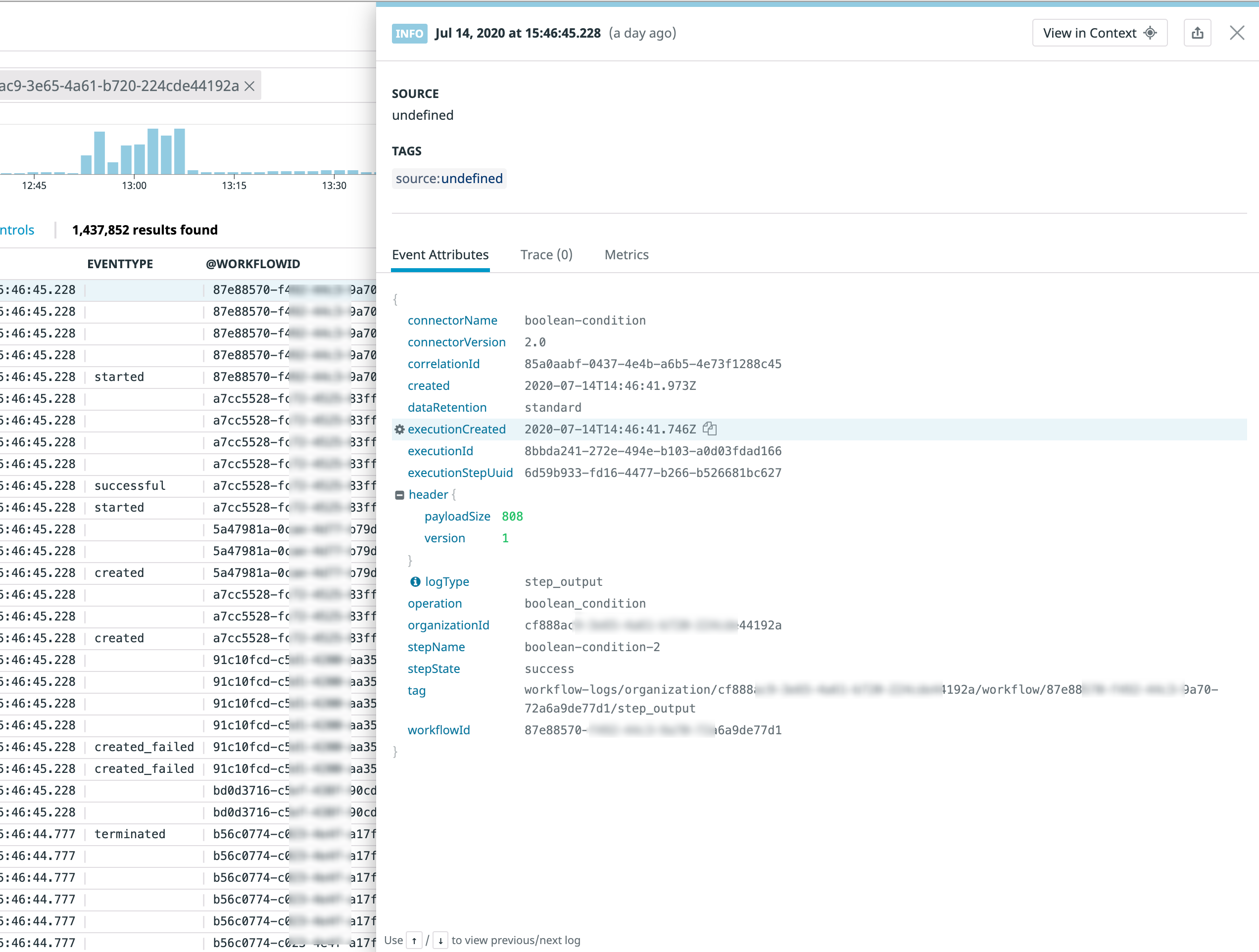
The examples below show a Datadog dashboard built on this data.
Aggregate charts:
A filtered list of events with selected columns:
A single event:
Log event types
There are three main log event types in Tray:
Data payloads are subject to change with subsequent releases
Fields common to all event types
The following conventions and fields apply to all three event types. They are described once here rather than repeated in each section below.
How fields are presented
A field with no value is omitted from the payload entirely. It is not sent as null.
Audit events are an exception to this rule. The details field on an audit event may arrive as an object, as null, or be absent altogether, depending on which part of the platform emitted the event. Parsers must handle all three cases. See the 'Audit' event type below.
New fields are added to these payloads from time to time. Your integration should ignore any key it does not recognise rather than treating it as an error, so that it continues to work when a field is added.
Common fields
| Field | Type | Description |
|---|---|---|
eventId | string | A unique identifier for the event. Use it to de-duplicate events if the same event is delivered more than once. |
source | string | Always the literal value trayio. |
The header object
header objectExecution and step events carry a header object describing the event itself:
| Field | Type | Description |
|---|---|---|
payloadSize | integer | Byte size of the event excluding the data field. |
payloadSizeWithData | integer | Byte size of the complete event, including data. |
version | integer | Payload format version. |
Where an event carries no data field, payloadSize and payloadSizeWithData are equal.
The header sent on audit events is not the same as the one described above. Do not assume payloadSizeWithData is present on an audit event.
Embedded and Solution Instance fields
For Enterprise package customers using the Embedded bundle to build integrations for multiple End Users, events carry the following additional fields. These appear on all three event types, not only on execution events:
| Field | Type |
|---|---|
solutionId | uuid |
solutionInstanceId | uuid |
sourceWorkflowId | uuid |
sourceProjectId | uuid |
The 'Execution' event type
An Execution event gives the details on the status of a workflow run. A key piece of info here being eventType which can be: created | started | retrying | failed | created_failed | manually_retried | successful | terminated
Execution payload format
The execution log payload format is:
{
  "header": {
    "payloadSize": 773,
    "payloadSizeWithData": 773,
    "version": 1
  },
  "eventId": "<string>",
  "source": "trayio",
  "logType": "execution_event",
  "eventType": "<created | started | retrying | failed | created_failed | manually_retried | successful | terminated>",
  "created": "<iso timestamp>",
  "executionCreated": "<iso timestamp>",
  "executionId": "<uuid>",
  "workflowId": "<uuid>",
  "workflowTitle": "<string>",
  "workflowVersionUuid": "<uuid>",
  "organizationId": "<uuid>",
  "workspaceId": "<string>",
  "projectId": "<uuid>",
  "triggerId": "<uuid>",
  "externalUserId": "<string>",
  "dataRetention": "<standard | one_day | three_days | seven_days | thirty_days>",
  // fields present in case of error
  "errorMessage": "<string | undefined>",
  "errorStepName": "<string | undefined>",
  "errorStepTitle": "<string | undefined>",
  "errorId": "<uuid | undefined>",
  "errorType": "<internal | input | connector | external>"
}
In addition to the fields common to all event types, execution events carry:
| Field | Type | Description |
|---|---|---|
workspaceId | string | Identifier of the workspace. This is an opaque string and should not be parsed as a UUID. |
projectId | uuid | Identifier of the project the workflow belongs to. |
workflowTitle | string | Title of the workflow at the time of the run. |
triggerId | uuid | Identifier of the trigger that started the run. |
workflowVersionUuid | uuid | Identifier of the workflow version that ran. Sent on execution events only. |
externalUserId | string | Identifier of the External User associated with the run. |
dataRetention | string | Retention period applied to this run's data. One of standard, one_day, three_days, seven_days, thirty_days. |
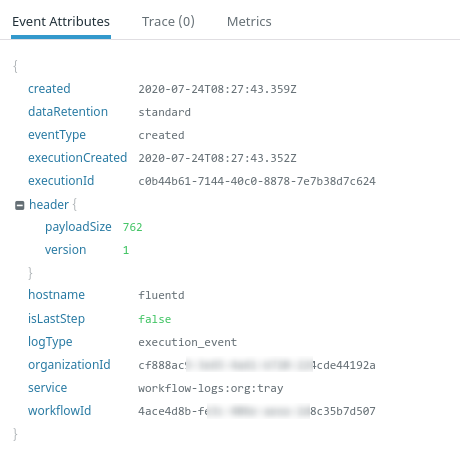
Execution example payload
And the following screenshot shows an example execution log payload:
Execution payload format (including Solution Instances)
For Enterprise package customers using the Embedded bundle, execution events carry additional Solution Instance fields. These are not specific to execution events — they appear on all three event types, and are documented in Embedded and Solution Instance fields above.
The 'Step' event type
A Step event gives details about the status of a specific step in a workflow. A key piece of info here being stepState which can be running | failure | success
It can be of logType 'input' or 'output' (as explained in the Intro to Logs and Debugging)
Step payload format
Step events do not carry an eventType field. Use logType to tell a step input from a step output.
The standard step payload format is:
{
  "header": {
    "payloadSize": 773,
    "payloadSizeWithData": 1049,
    "version": 1
  },
  "eventId": "<string>",
  "source": "trayio",
  "logType": "<step_input | step_output>",
  "created": "<iso timestamp>",
  "executionCreated": "<iso timestamp>",
  "executionId": "<uuid>",
  "workflowId": "<uuid>",
  "workflowTitle": "<string>",
  "organizationId": "<uuid>",
  "workspaceId": "<string>",
  "projectId": "<uuid>",
  "triggerId": "<uuid>",
  "authenticationId": "<uuid>",
  "externalUserId": "<string>",
  "dataRetention": "<standard | one_day | three_days | seven_days | thirty_days>",
  "stepName": "<string>",
  "stepState": "<running | failure | success>",
  "stepCounter": "<integer>",
  "connectorName": "<string>",
  "connectorVersion": "<string>",
  "operation": "<string>",
  "executionStepUuid": "<uuid>",
  "correlationId": "<uuid>",
  // if enabled
  "data": "<object>",
  // fields present in case of error
  "errorMessage": "<string | undefined>",
  "errorId": "<uuid | undefined>",
  "errorType": "<internal | input | connector | external>"
}
In addition to the fields common to all event types, step events carry:
| Field | Type | Description |
|---|---|---|
workspaceId | string | Identifier of the workspace. This is an opaque string and should not be parsed as a UUID. |
projectId | uuid | Identifier of the project the workflow belongs to. |
workflowTitle | string | Title of the workflow at the time of the run. |
triggerId | uuid | Identifier of the trigger that started the run. |
authenticationId | uuid | Identifier of the authentication used by the step. |
externalUserId | string | Identifier of the External User associated with the run. |
dataRetention | string | Retention period applied to this run's data. One of standard, one_day, three_days, seven_days, thirty_days. |
stepCounter | integer | The position of this step within the run. |
Oversized step data
Where the data field is too large to stream, it is replaced by a placeholder object carrying message and documentation keys:
{
  "data": {
    "message": "<string>",
    "documentation": "<string>"
  }
}
Retrieval of oversized payloads is not enabled in all deployments. Where it is not, the original data cannot be recovered from the log stream.
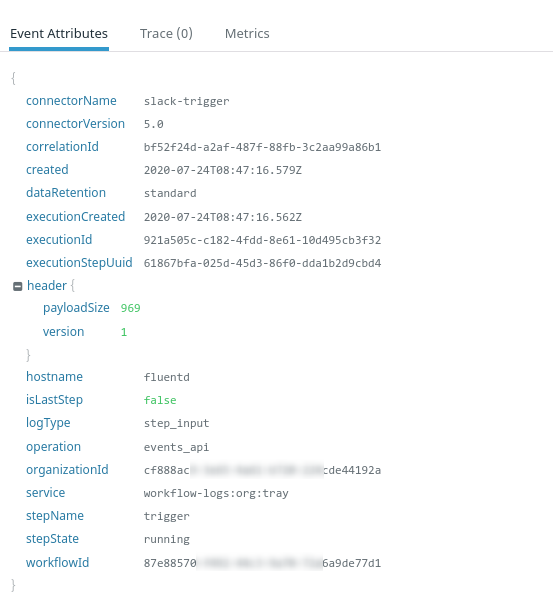
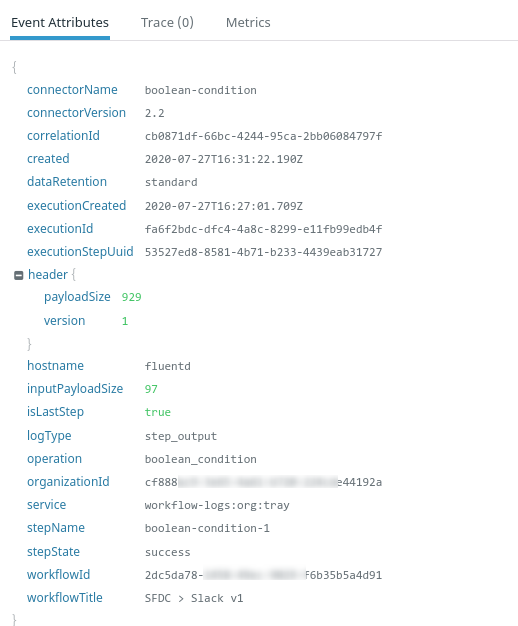
Step payload example
And the following screenshot shows an example step log step_input payload:
And a step_output payload:
Enhanced error alerting payloads
Note that it is possible to turn on enhanced payloads for your error handling workflows.
This will mean that payloads coming through to your workflows using the Alerting Trigger will contain more detailed information on workflow errors, as they will have parsed the information directly from the third-party service which returned the error.
Please see our Error Handling documentation for full details.
The 'Audit' event type
Audit events inside of Tray are a powerful tool to be able to see the user and system generated actions performed on Workflows, Users and Authentications. Context given from these events can be vital to providing key insights into the usage of the Tray platform and also to provide a historical trail of user or system actioned events that took place in the Tray platform.
This allows customers to run their own real time analysis using the tooling of their choice and also have a copy of the logs for batch analysis later and also monitor the usage of the platform for auditing purposes.
Audit payload format
Each audit event has slightly different details, but the following is a sample format.
{
  "eventId": "<string>",
  "source": "trayio",
  "logType": "audit",
  "eventType": "<string>",
  "details": "<object | null | undefined>",
  "organizationId": "<uuid>",
  "timestamp": "<iso datetime>",
  "clientIp": "<string | null>",
  "clientLocation": "<string | null>",
  "calledBy": { "userId": "<string>", "email": "<string>" },
  // present only when the action was performed on another user's behalf
  "impersonatedBy": { "userId": "<string>", "email": "<string>" }
}
| Field | Type | Description |
|---|---|---|
logType | string | Always the literal value audit. |
clientIp | string | null | IP address the action originated from. Always present. Set to tray-employee where the action was performed by Tray personnel. |
clientLocation | string | null | Location the action originated from. Always present. Set to masked where the action was performed by Tray personnel. |
impersonatedBy | object | Present only when the action was performed on another user's behalf. Omitted otherwise. |
The details field
details fielddetails does not have a fixed shape. Its contents depend on eventType, and it may arrive as an object, as null, or be absent entirely, depending on which part of the platform emitted the event. Treat it as an open object and handle all three cases.
Representative shapes:
Workflow events carry workflow identifiers, and step-level events additionally carry step identifiers:
{
  "details": {
    "workspaceId": "<string>",
    "workflowId": "<uuid>",
    "workflowTitle": "<string>",
    "workflowVersionId": "<uuid>",
    // step-level events only
    "stepName": "<string>",
    "stepTitle": "<string>",
    "operation": "<string>"
  }
}
UserOrganizationRoleChanged:
{
  "details": {
    "userId": "<string>",
    "userEmail": "<string>",
    "oldRole": "<string>",
    "newRole": "<string>"
  }
}
UserLoginSucceeded and UserLoginFailed carry no details at all.
Audit payload example
And the following screenshot shows an example audit log payload:
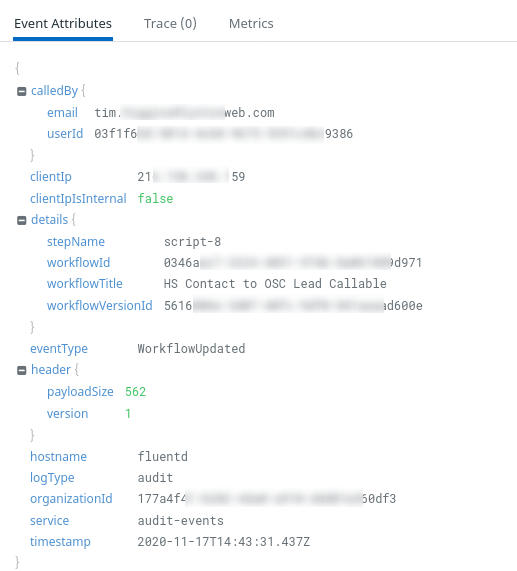
Please see the appendix below for a table which gives a list of all the Audit events available.
Audit payload example (including Solution Instances)
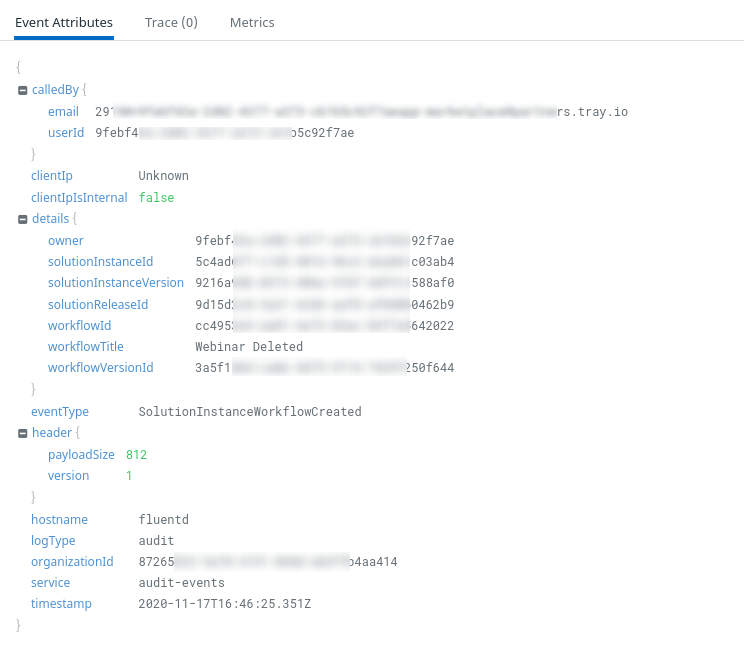
For Enterprise customers with the Embedded bundle, there are several Embedded-specific Audit event types.
These are solutionInstanceWorkflowCreated, solutionInstanceWorkflowUpdated and solutionInstanceWorkflowDeleted
The following screenshot shows an example log for solutionInstanceWorkflowCreated:
Saving filters in your dashboard
The external service you are streaming your logs to will likely have the ability to filter data according to your needs.
There are obviously huge possibilities in terms of what filtering can be done. But some ways in which you might wish to filter are:
- By connectorName so you can have a dashboard which shows all information on how Salesforce connectors are running across all your workflows
- By stepState = retrying to get a view on all step events which are currently retrying
- By eventType = failed to monitor failing workflows
Setting up log streaming
To enable log streaming, open a support ticket from the app and select Log Streaming. The relevant setup information will then be requested.
Once set up you can validate that your service is receiving the correct log types.
For whitelisting purposes, Tray will be sending logs from the following IPs:
- 52.8.7.130
- 18.144.153.142
Endpoint verification
When a log streaming destination is first configured, Tray sends a single verification message to it:
{
  "logType": "trayVerification",
  "token": "<string>"
}
This message carries none of the fields common to all event types. It is not a log event, and your integration should filter it out before processing rather than treating it as a malformed event.
Questions & Feedback
In order to improve this feature, we'd like to hear from your experience in using Logs Streaming. To do so, navigate to the "Product Feedback" section of your Tray dashboard and mention 'Logs Streaming' in your message.
Appendix - Table of Audit log event types
| Category | Name |
|---|---|
| Authentication | AuthenticationCreated |
| Authentication | AuthenticationUpdated |
| Authentication | AuthenticationDeleted |
| Authentication | AuthenticationRefreshFailed |
| Authentication | AuthenticationRefreshSuccessful |
| Authentication | AuthenticationCreationFailed |
| Authentication | AuthenticationSharingChanged |
| Authentication | AuthenticationUsed |
| Authentication/Workflow | ServiceChanged |
| Authentication/Workflow | ServiceCreated |
| Organization | OrganizationUserInvited |
| Organization | OrganizationDetailsUpdated |
| Organization | OrganizationSettingsUpdated |
| User | UserInternalRoleChanged |
| User | 2FALoginFailed |
| User | 2FADisabled |
| User | 2FAEnabled |
| User | UserLoginSucceeded |
| User | UserLoginFailed |
| User | UserDeleted |
| User | UserOrganizationRoleChanged |
| Workflow | WorkflowUpdated |
| Workflow | WorkflowCreated |
| Workflow | WorkflowDeleted |
| Workflow | WorkflowViewed |
| Workflow | WorkflowTagsUpdated |
| Workflow | WorkflowDisabled |
| Workflow | WorkflowStepTitleUpdated |
| Workflow | WorkflowStepSettingsUpdated |
| Workflow | WorkflowStepOperationUpdated |
| Workflow | WorkflowStepAuthenticationSet |
| Workflow | WorkflowAlertingWorkflowSet |
| Workflow | WorkflowStepMoved |
| Workflow | WorkflowStepDescriptionRemoved |
| Workflow | WorkflowDescriptionRemoved |
| Workflow | WorkflowStepDeleted |
| Workflow | WorkflowVersionRolledBack |
| Workflow | WorkflowEnabled |
| Workflow | WorkflowStepCreated |
| Workflow | WorkflowStepAuthenticationRemoved |
| Workflow | WorkflowStepDescriptionSet |
| Workflow | WorkflowCloned |
| Workflow | WorkflowDescriptionSet |
| Workflow | WorkflowAlertingWorkflowRemoved |
| Workflow | WorkflowNameUpdated |
| Workflow | WorkflowDebugLogViewed |
| Workflow | WorkflowDetachedFromProject |
| Solution Instance | solutionInstanceWorkflowCreated |
| Solution Instance | solutionInstanceWorkflowUpdated |
| Solution Instance | solutionInstanceWorkflowDeleted |
| Agent Gateway | McpUserAccessGranted |
| Agent Gateway | McpUserAccessRevoked |
| Agent Gateway | McpServerNameUpdated |
| Agent Gateway | McpServerEnabled |
| Agent Gateway | McpServerDisabled |
| Agent Gateway | McpConnectorConfigurationCreated |
| Agent Gateway | McpConnectorConfigurationUpdated |
| Agent Gateway | McpConnectorConfigurationDeleted |
| Agent Gateway | McpWorkflowConfigurationCreated |
| Agent Gateway | McpWorkflowConfigurationUpdated |
| Agent Gateway | McpWorkflowConfigurationDeleted |
| Agent Gateway | DynamicAuthCreated |
| Agent Gateway | DynamicAuthRemoved |