
Log Masking
Hide a workflow step's input and output values in execution logs UI so sensitive data stays protected from workspace members, while admins keep on-demand access.
If you're interested in using this feature, please reach out to your Customer Success Manager or Account Executive.
Overview
Log Masking lets an Admin or Workspace Admin hide a workflow step's input and output values in the execution logs shown in the Tray UI. Once a step is masked, those values appear as masked to everyone in the workspace, which stops sensitive data from being casually viewed while browsing logs.
Masking affects only how log data is displayed — it does not change how your workflow executes. This is what makes it so powerful: your team can keep building and debugging workflows as normal while sensitive values stay hidden. You no longer have to choose between locking logs down and being able to troubleshoot. Admins and Workspace Admins can reveal a masked value on demand, and every reveal is recorded in the audit log.
Only Admins and Workspace Admins can mask, unmask, or reveal step data. All other roles see masked values by default and cannot change masking settings.
Mask a step
You apply masking directly from the workflow builder.
- In the workflow builder, right-click the step you want to mask.
- Select Mask log data.
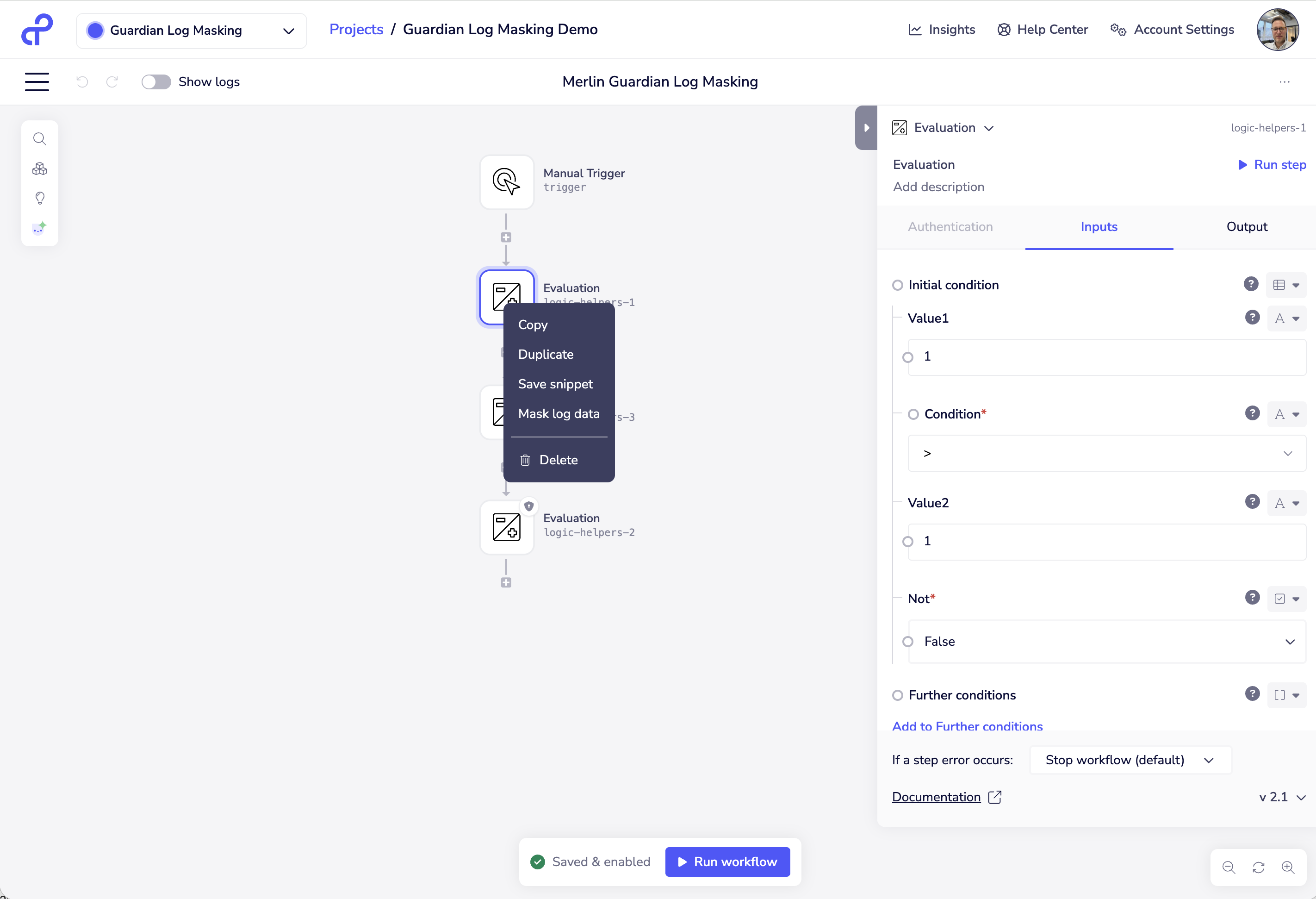
That step's input and output log data is now masked for everyone in the workspace.
To remove masking from a step, right-click it again and select Unmask log data.
Masking is tied to the specific step. If you swap a trigger that has masking applied, the rule stays with the step and it remains masked. Copying, duplicating, or saving a masked step as a snippet creates a new step that is not masked.
View masked data in logs
In execution logs, the input and output of a masked step display as These values are masked. for all users.
If you are an Admin or Workspace Admin and need to see the underlying values, select Unmask at the top of the step's log panel.
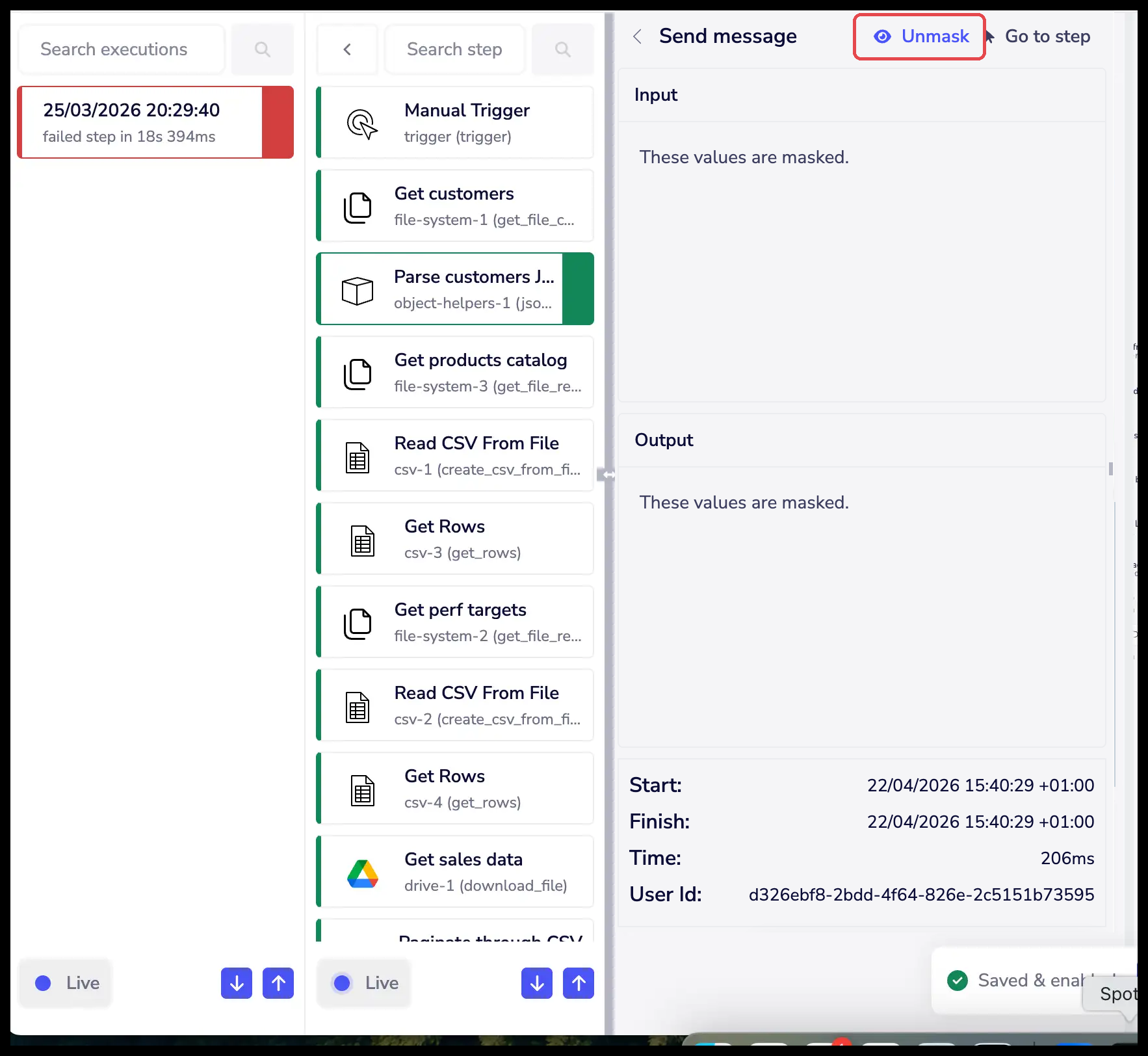
An unmask applies only while you stay on the page — once you navigate away, you must action the reveal again to view the value. Every reveal is recorded in the audit log.
Manage masked steps
To see and manage every masked step across the workspace, go to Workspace settings → Data masking.
The list shows each masked step, the workflow it belongs to, who masked it, and when.
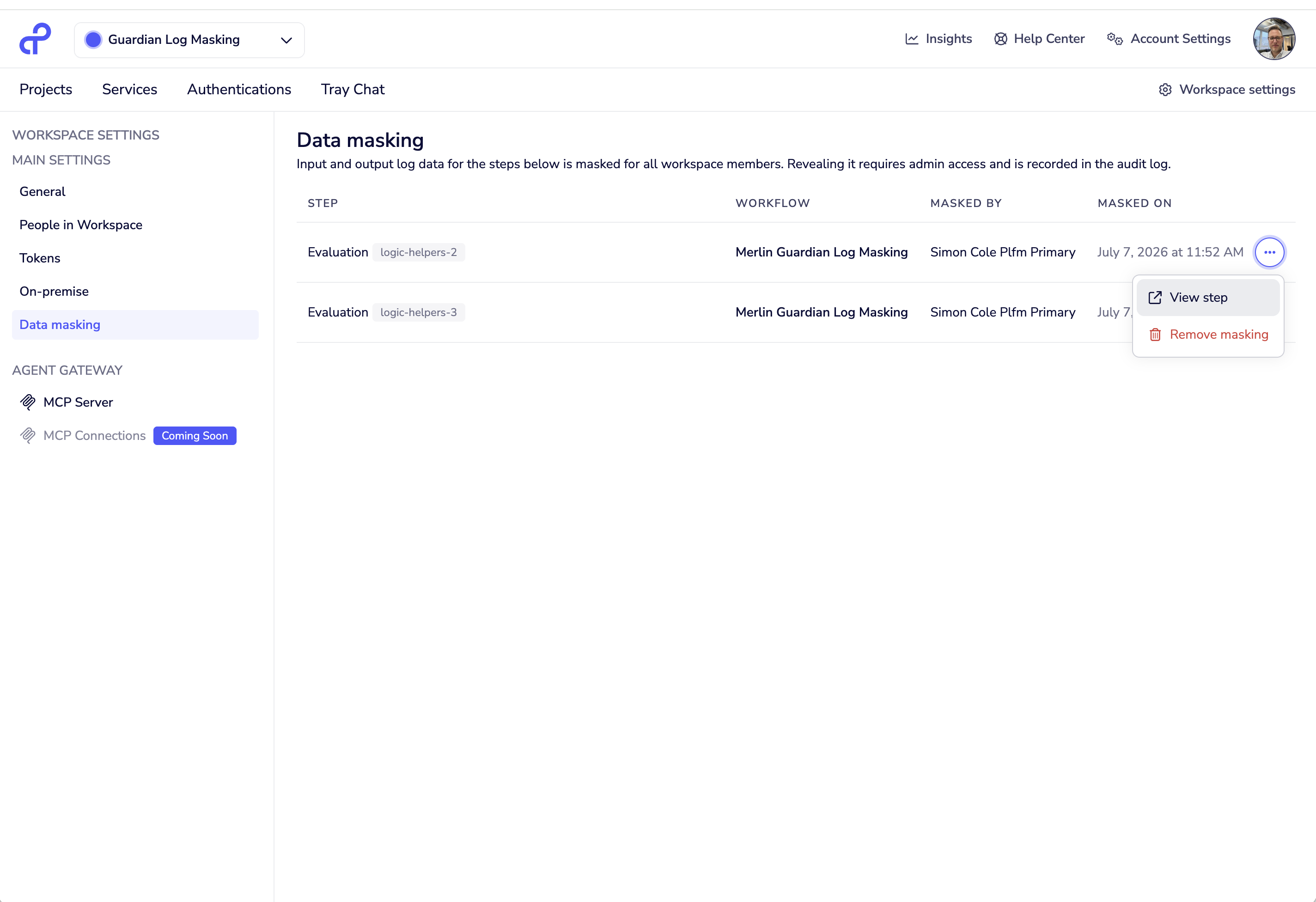
From the ... menu on any row you can:
- View step — jump to the masked step in its workflow.
- Remove masking — remove the masking rule so the step's log data is visible again.
Roles and permissions
| Action | Admin / Workspace Admin | All other roles |
|---|---|---|
| Mask or remove masking on a step | ✅ | ❌ |
| View the workspace-wide Data masking list | ✅ | ❌ |
| Unmask (reveal) a masked value in logs | ✅ | ❌ |
| Run the step tester on a masked step | ✅ | ❌ |
Behavior in common scenarios
- Swapping a masked trigger — The rule follows the step, so swapping the trigger keeps it masked.
- Copying or duplicating a masked step — The copy is a new step and is not masked. Re-apply masking to it if it also handles sensitive data.
- Running a masked step — Only Admins and Workspace Admins can run a step that has masking applied (via Run step or the step tester). All other roles cannot run it.
- Deleting a step — The masking rule is retained but closed, so logs from previous runs stay masked. Closed rules are not shown in the Data masking list — only active rules appear. If the same step is recreated and re-masked, its rule reactivates automatically.
- Moving a workflow — Masking is not carried across automatically; an Admin or Workspace Admin has to apply it again in the destination.
- Search — Masked values are excluded from search results.