Callable lookups are a useful design pattern when it comes to running a large scale automation practice. The idea is simple, you maintain a “lookup table” with the data storage connector, or the CSV editor, and enable the ability to search the table using a fire and wait for response callable workflow.
A Marketing Ops use case may be to leverage one for their email validation process, by having a lookup table for domains of common disposable email providers.
Here at Tray, one of our favorite lookups is our employee directory callable. Each employee has a directory entry with basic information like their name and email, as well as user IDs for the systems we commonly build automations around, like Salesforce and Slack.
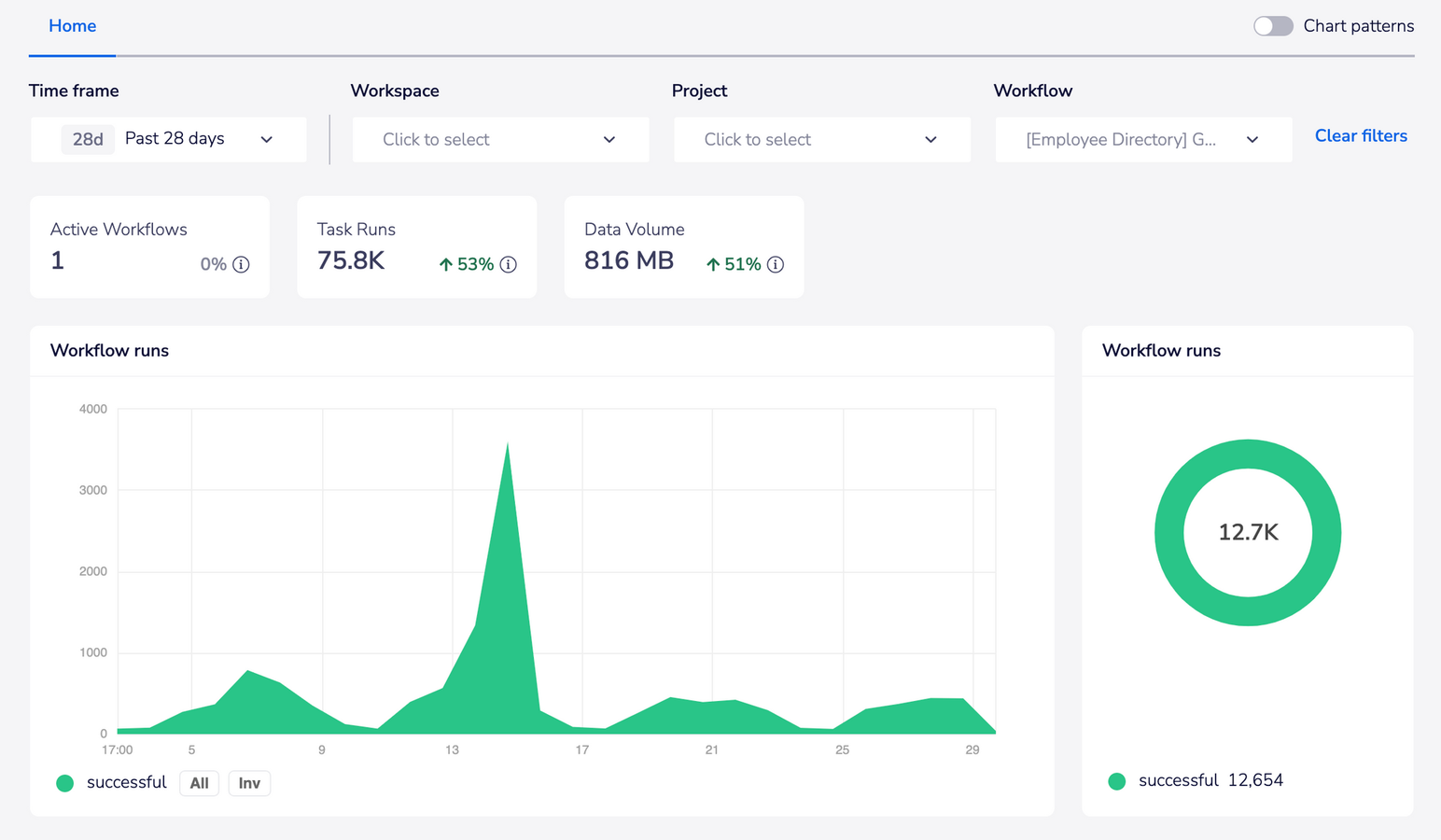
I took a look at our Insights Hub to get a sense of how often we use this process every month and learned it was called almost 13,000 times by 81 different workflows. Even though a number of the 81 were in low use, I was still pretty surprised to see that many processes had called it!
Why use callable lookups?
There’s a few reasons why you might want to use a lookup like this workflow:
- Reducing rate limiting issues: Storing data locally means you don’t need to make any additional API calls to external systems. We actually built this initially to reduce the number of Slack API calls we were making as we were getting errors due to rate limits.
- Faster and more reliable processes: Less external calls, means much faster processes and less susceptibility to intermittent issues with external APIs.
- Better cross-system process automation: It’s much easier to string processes together across multiple systems when you have a person’s systems IDs easily at hand.
- It’s Fun: We have a cool feature with our directory where we allow Salesforce users to store a custom GIF link on their user profile. We store that on their directory entry and use it to send a congrats to them, like when they close a deal:

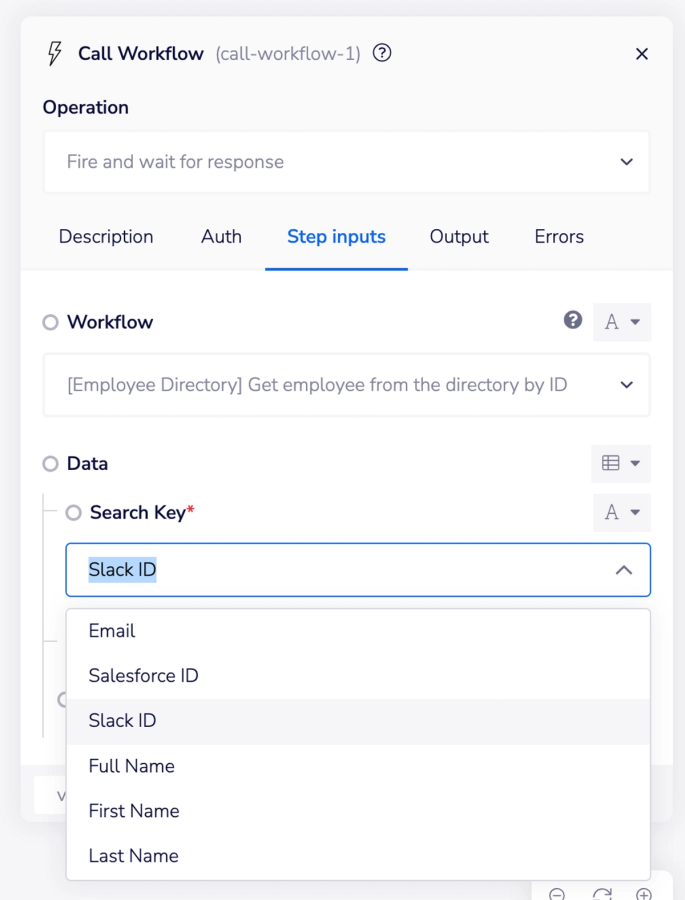
The directory callable allows you to search for an employee using any of the properties in their entry. For example, you could search for them using their email:
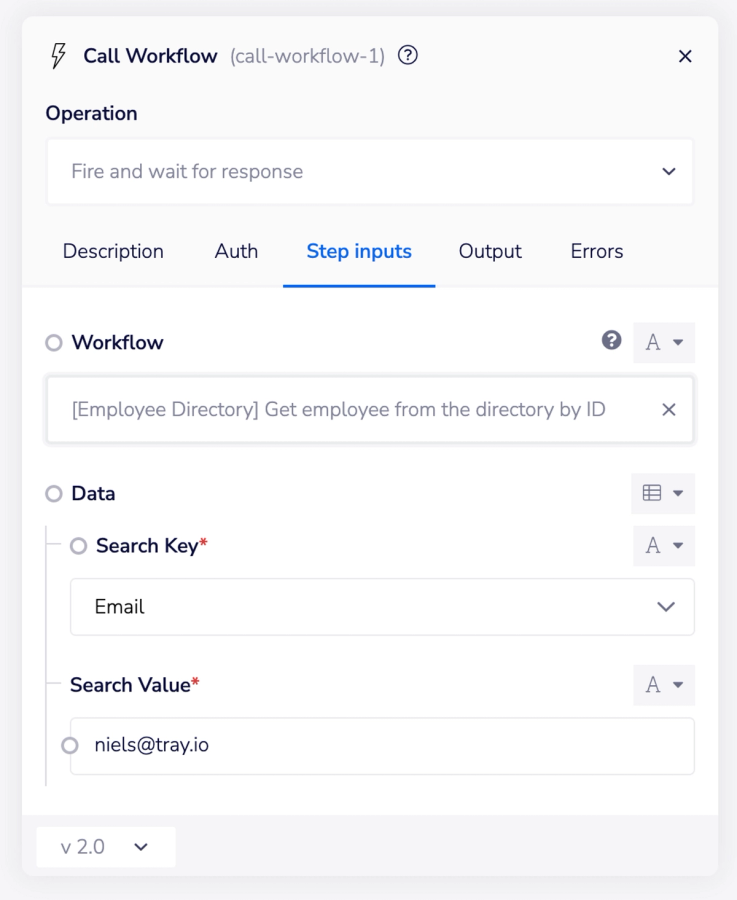
Or any other system ID in the directory, like their Slack ID:
Here’s what an example entry in the directory might look like:
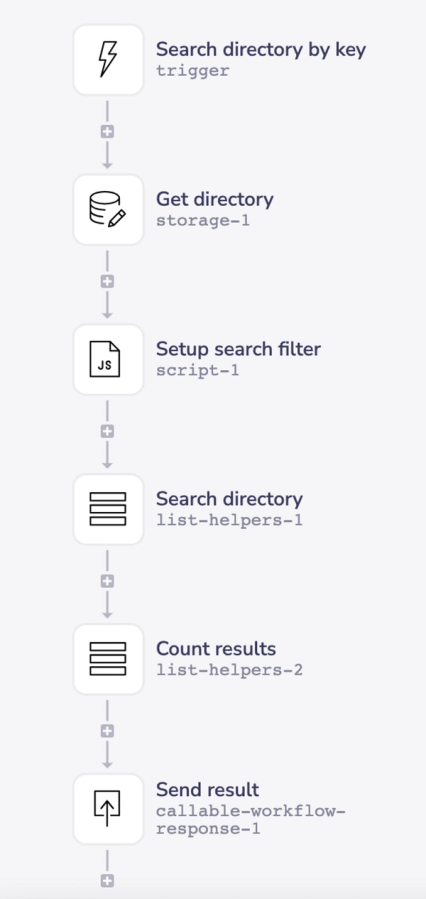
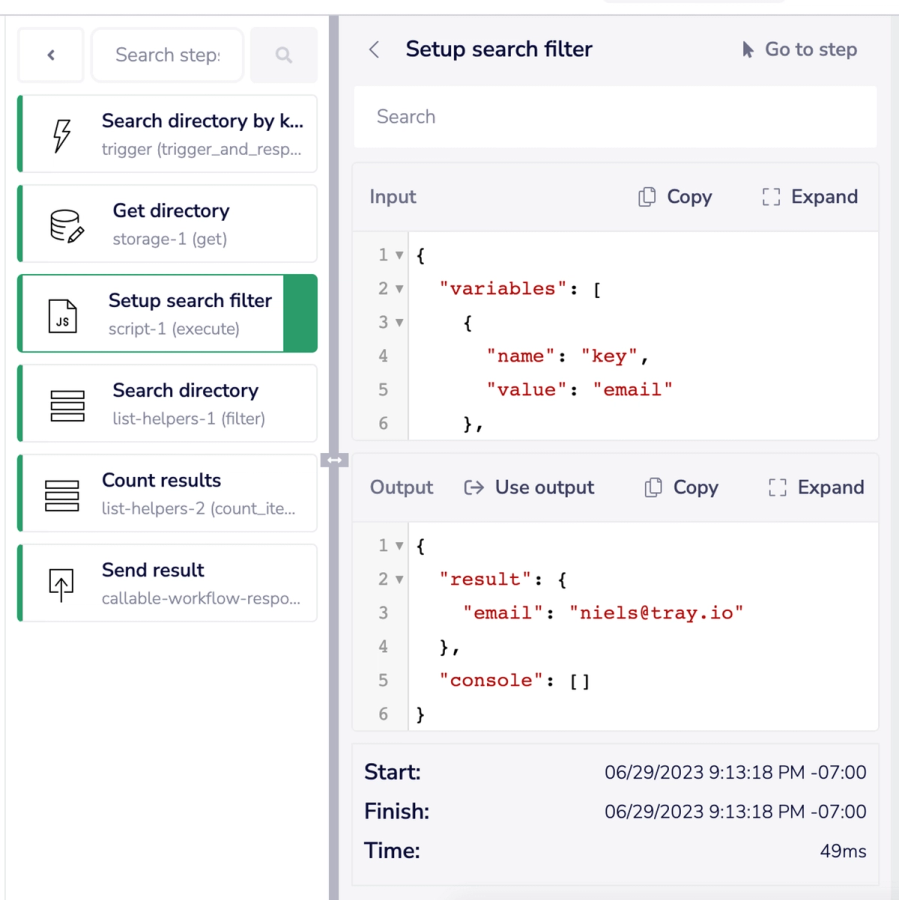
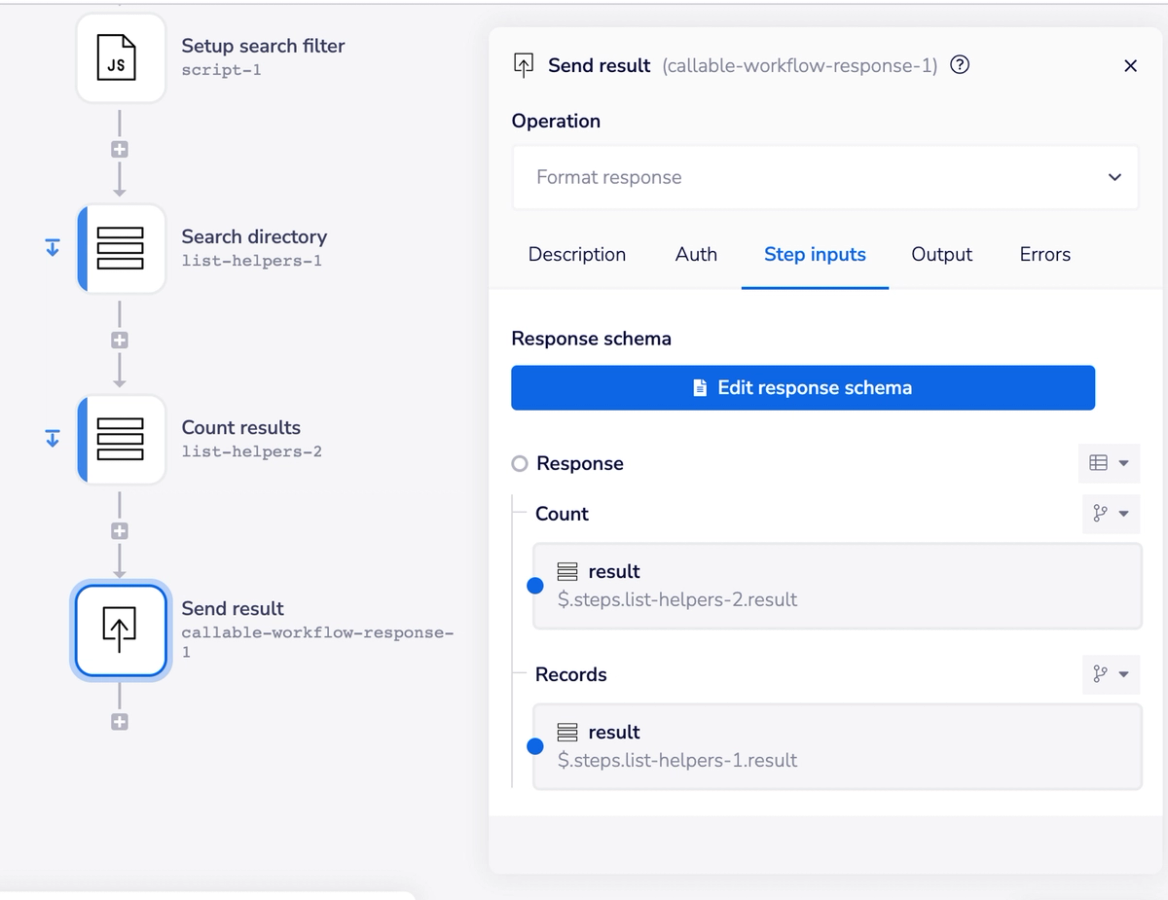
The entries are stored in a lookup table using the data storage connector. The directory callable has is a pretty simple workflow design which first grabs the directory from the “account” scope of data storage, then uses the search key and search value from the trigger inputs to form a filter object:
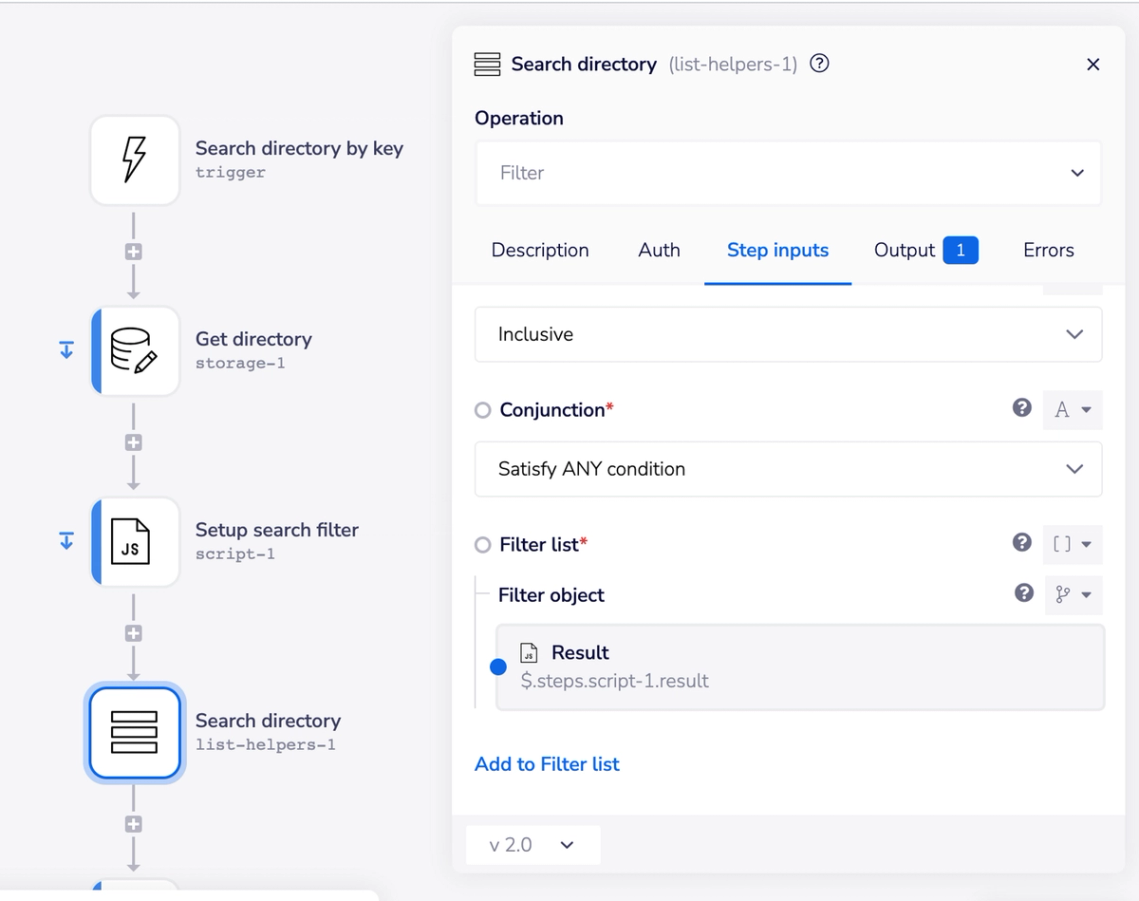
The filter object is passed to a “filter” list helper step, where the list you’re filtering is your lookup table (aka “employee directory”):
A count of the number of matching results is done using the results from the filter step and it’s all sent back to the workflow that called:
Here’s a sample response:
How the directory is created
There’s a dedicated workflow with a simple design pattern to follow that's used to build the directory:
- Start with an official list of employees that includes their email
- Search each system you wish to associate to their directory entry for their user and email
- Join the results from each system to the official list using their email
- Store the joined results in data storage at the “account” scope
We do the join with a version of our list helper callable utility [List Helper Callables] Left join array of objects using 1 or more shared properties. This callable takes a left table and joins any matching entries from a right table where the right table entry shares a key with the left table entry:
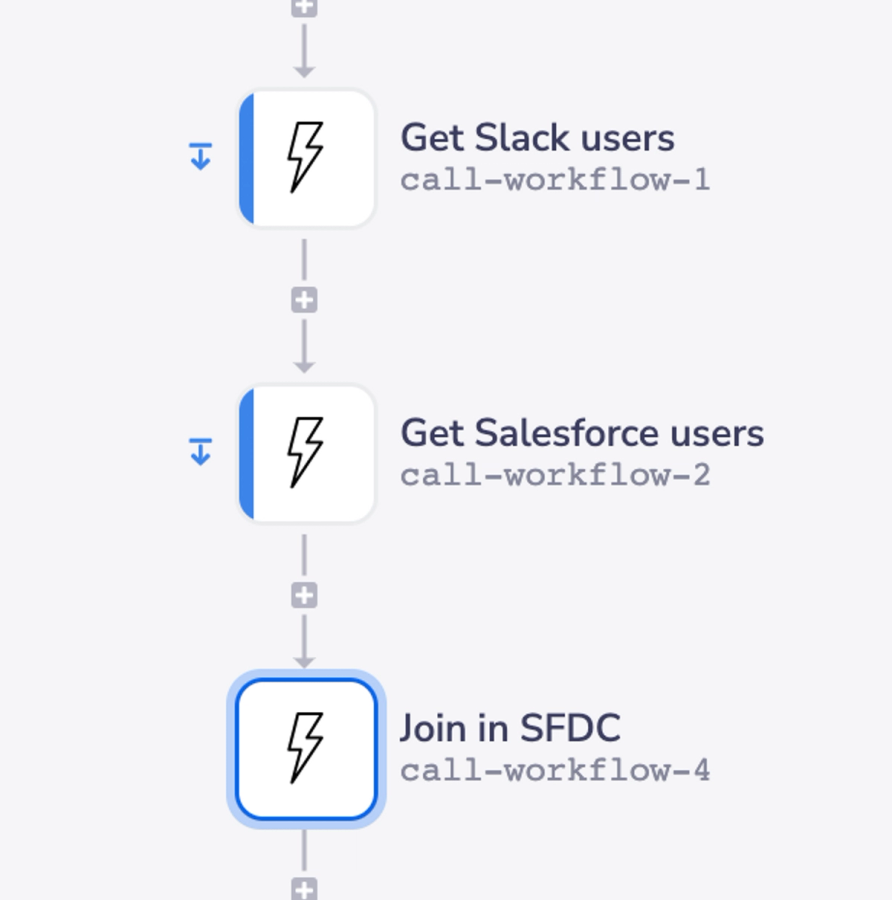
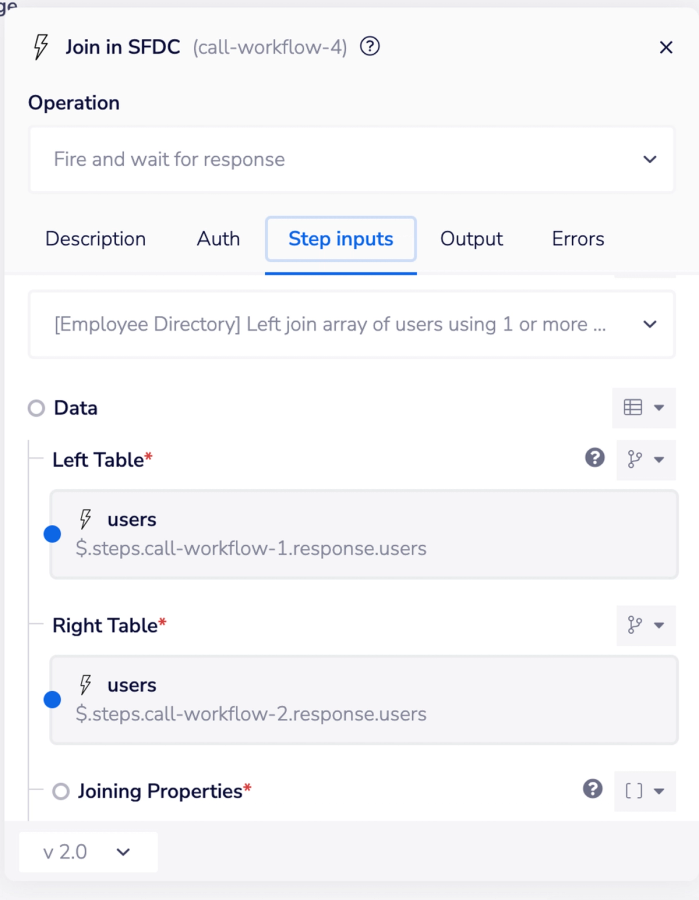
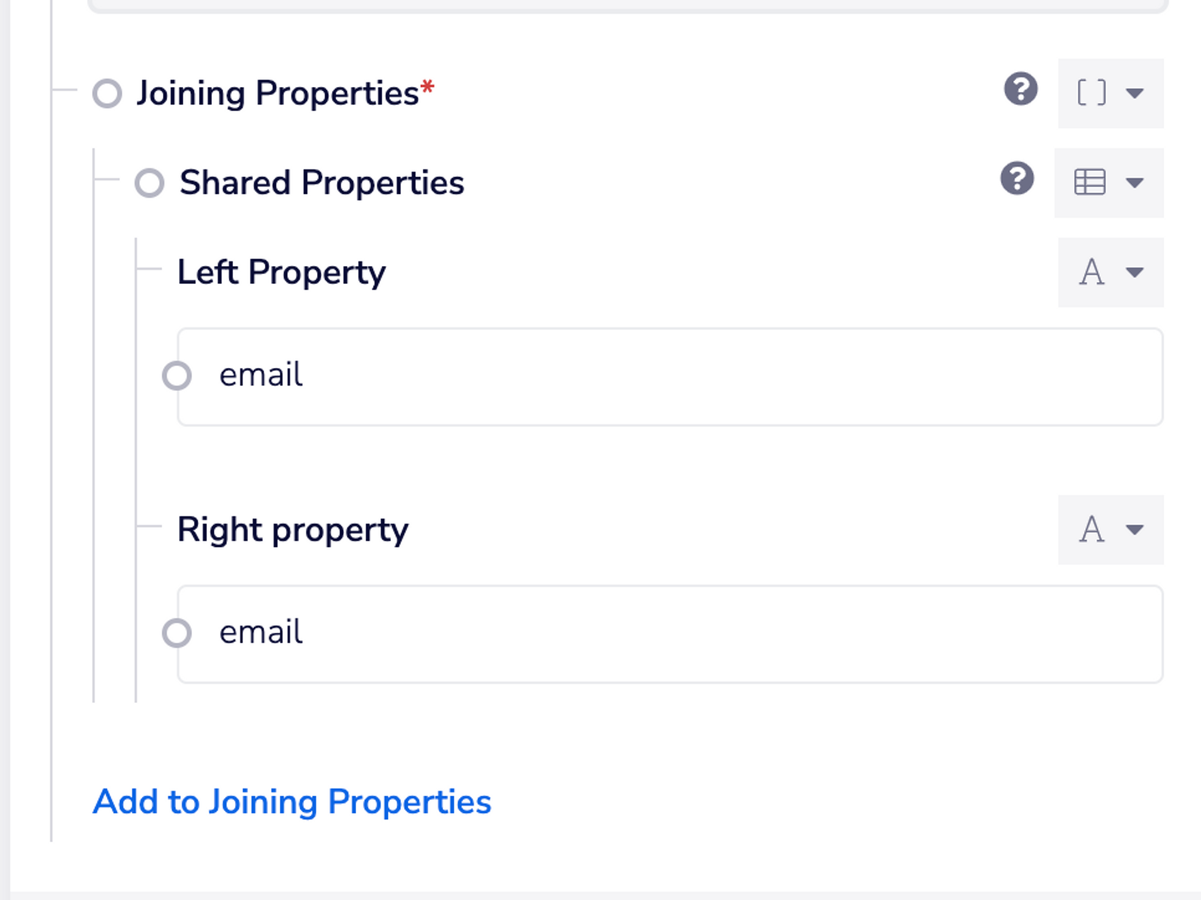
You repeat this pattern for each system you wish to include in your directory, storing the final result in data storage as the last step:
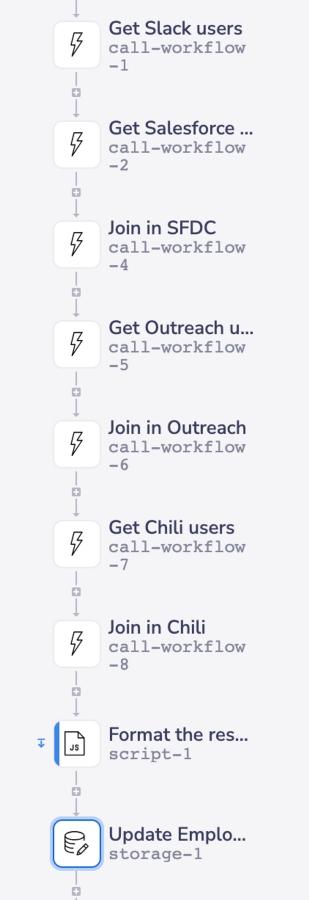
We turn this process itself into a “fire and forget” callable whose function is to “rebuild the directory” whenever we need. This allows us to have a schedule trigger which rebuilds it nightly, but also system-specific triggers that fire in real-time whenever a user is added or removed from the system so we can instantly rebuild the directory and make those updates as soon as they occur.
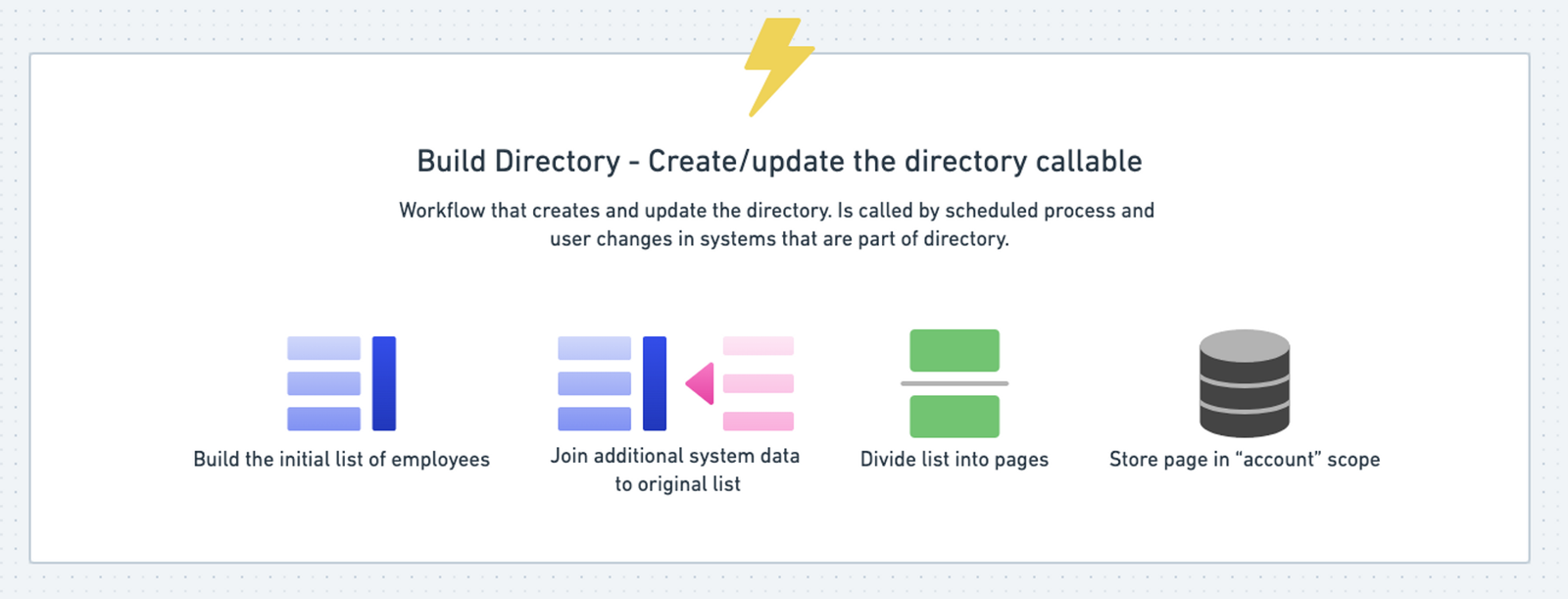
For larger companies with many employees which would exist in the directory, there’s logic to create pages for the directory in the build process and a pagination feature in the search workflow to go through them.
Want to give it a try?
If you’re interested in building your own directory, check out our employee directory project template to get started. There's several videos in the template documentation and a variety of helpful templates/utility workflows to simplify getting things setup.
If you’re a customer, make sure to hit us up in #workflow-help of the Slack community if you have questions.