Dynamic (User-provided) Authentication
Allow end users to execute MCP tools using their own credentials, ensuring actions run with the right permissions and full auditability.
By default, connector tools and workflow steps execute using a shared service account — a fixed credential set by the tool builder. Dynamic (user-provided) authentication allows you to change this so that end users authenticate with their own credentials instead. This means actions run with each user's individual permissions and are fully traceable back to that person.
How it works
When a tool is configured for user-provided authentication, the original authentication set by the builder acts as a template. It defines which service and scopes are required. When an end user executes the tool, they are prompted to map one of their own authentications to that requirement — or create a new one on the spot.
The mapping is stored for 7 days and is scoped to your MCP session - during that period, subsequent executions of the same tool will use the mapped authentication without prompting again. Disconnecting and reconnecting your MCP server starts a fresh session, which resets the mapping.
How session and mapping lifetime relate
Each time an MCP client connects to the Tray MCP server, a new session is created. Authentication mappings are scoped to that session, and the 7-day window starts from when you first made the mapping choice.
- While the session is active — mappings are reused and you will not be prompted again for the same tool
- Disconnect and reconnect — a fresh session is created and previous mappings are no longer reachable, so you will be prompted again and can select different credentials if needed
- After 7 days — the mapping expires regardless of session state and you will be prompted on the next tool execution
This is why disconnecting and reconnecting is currently the only way to reset your credential choices before the 7-day expiry.
User-provided authentication requires the end user to be connecting via OAuth2. API token users have no personal credentials in Tray and cannot be prompted for authentication. See Authentication and Access for details on user types.
Configuring dynamic (user-provided) authentication
There are two places where a builder can set an authentication to user-provided mode.
At authentication creation
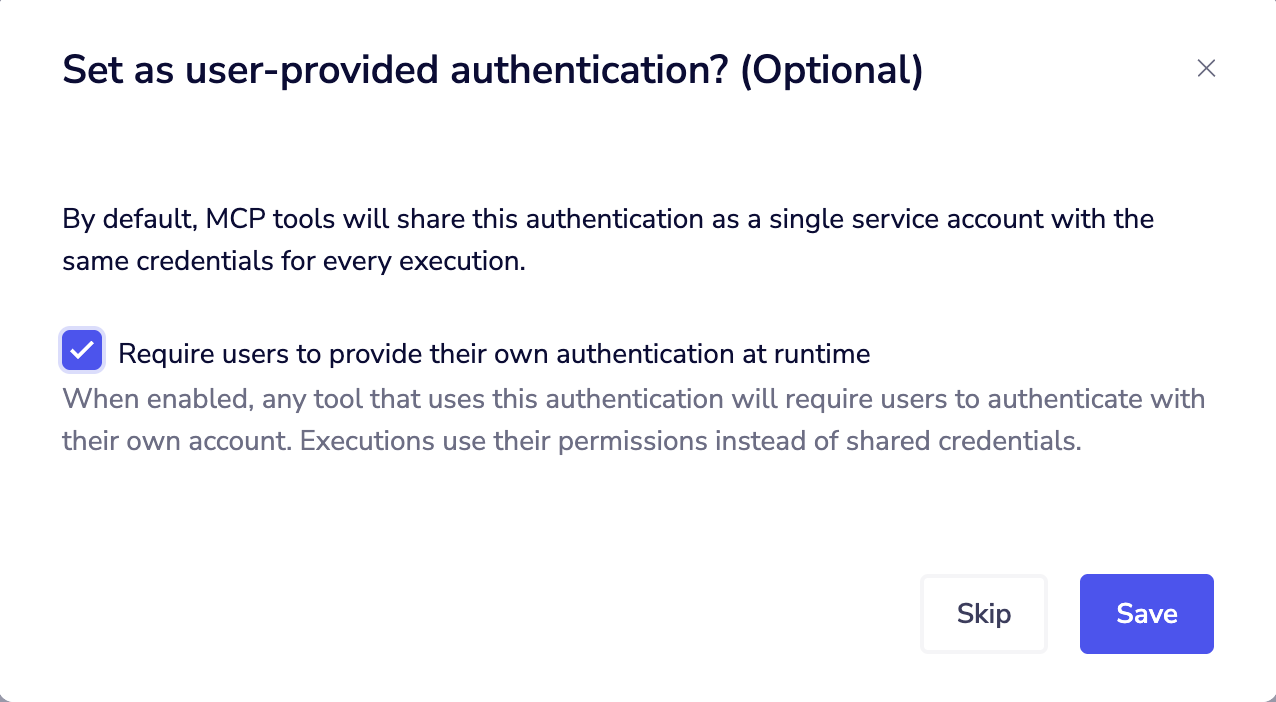
When creating a new authentication for a connector tool or workflow step, the final screen of the auth creation flow asks whether the auth should be set as user-provided. Selecting this option flags the auth as requiring end-user mapping at execution time.
Via the Authentication Management tab
Existing authentications can be switched between service account and user-provided at any time from the Authentication Management tab in your MCP Server settings.
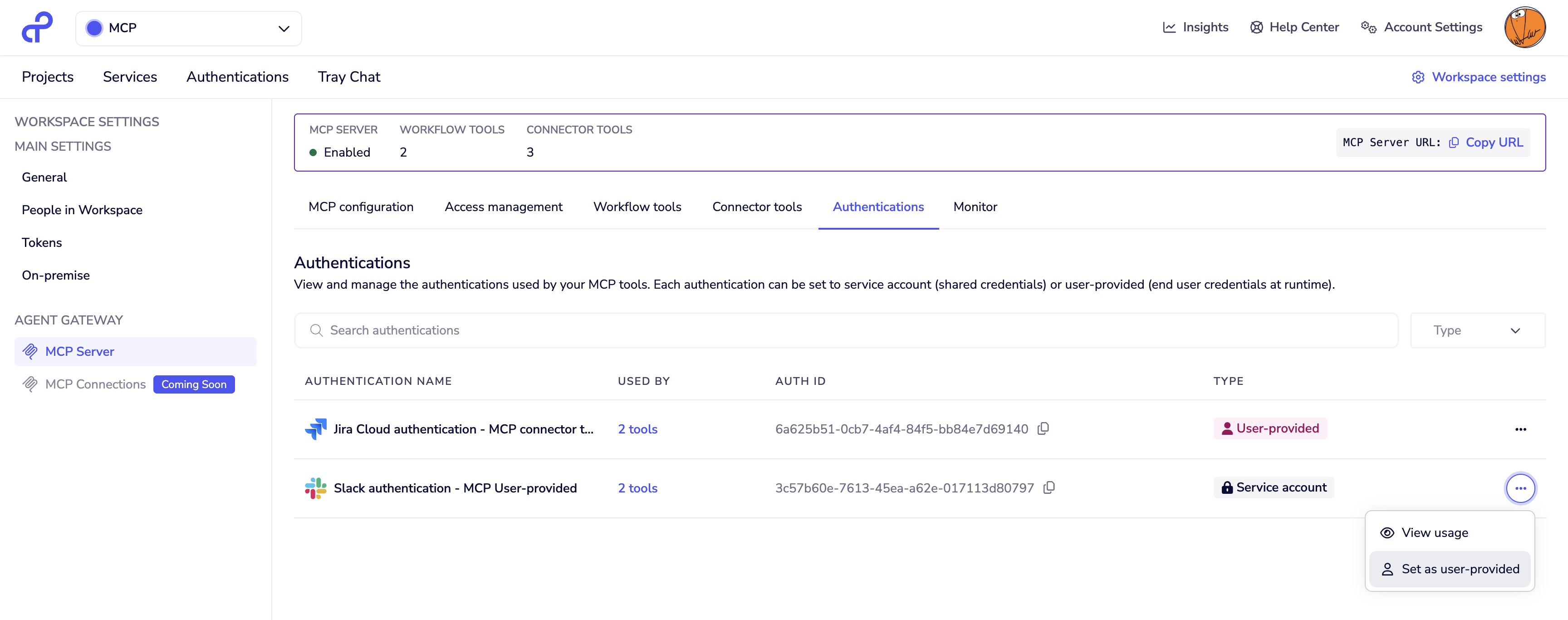
Before the change is applied, the tab shows the impact — all other tools within the workspace that use this authentication will also be affected by the mode change.
To update an authentication:
- Navigate to Workspace Settings → Agent Gateway → MCP Server
- Click the Authentication management tab
- Find the authentication you want to update
- Switch the mode between service account and user-provided
- Review which tools will be affected and confirm the change
Changing an authentication's mode affects every tool in the workspace that uses it — not just the one you are currently configuring. Review the impact list carefully before confirming.
Authentication in workflow tools vs connector tools
Connector tools have a single authentication per connector. All operations exposed from that connector (e.g. "Slack: Send Message", "Slack: Get Channels") share the same authentication, which can be set to service account or user-provided.
Workflow tools can connect to multiple systems in a single tool. Each step within the workflow uses its own connector authentication, and each can be independently set to service account or user-provided. This means a single workflow tool may prompt the end user for multiple authentications at execution time — one for each step where user-provided auth is configured.
The end-user experience
When a user invokes a tool that requires authentication mapping, their MCP client displays a message indicating that action is required, along with a link to a URL where they can complete the mapping.
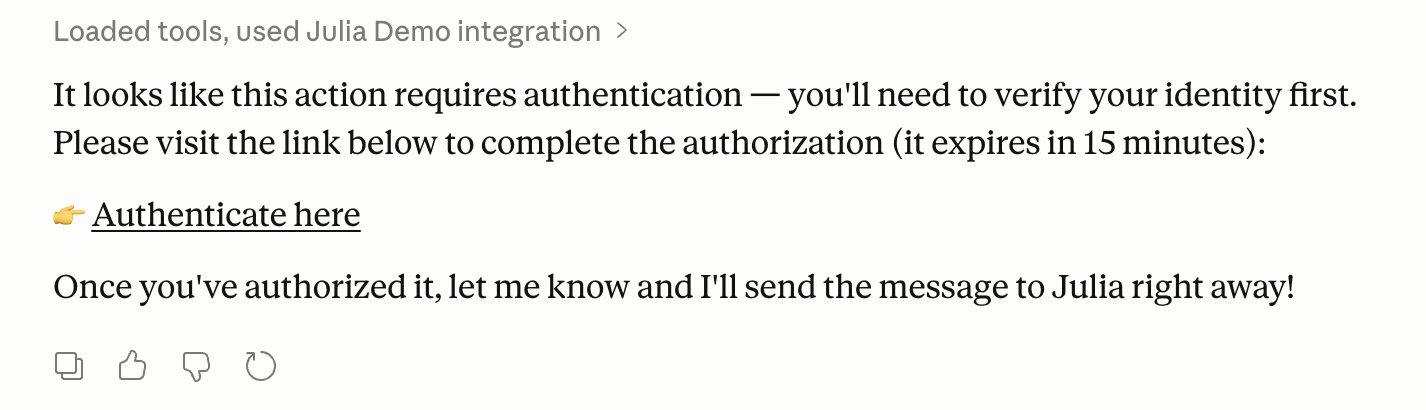
At that URL, the user sees a prompt listing the services that require authentication:
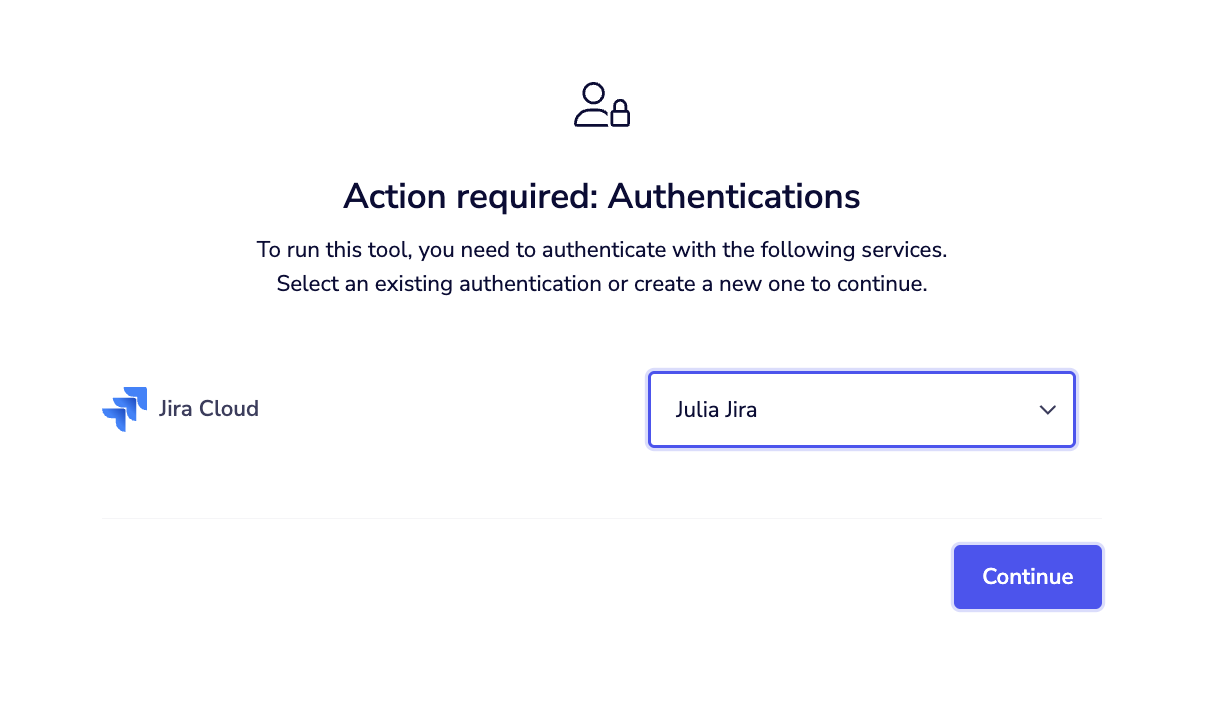
For each required service, the user can:
- Select an existing authentication from their personal Tray workspace
- Create a new authentication by clicking the create option, which opens the Tray authentication creation flow inline. For OAuth-based services, this completes the OAuth flow immediately. For token-based services, the token is accepted as provided and any issues will surface at runtime.
Once all required services are mapped, the user can return to their MCP client. If it supports URL-based elicitation, the tool will resume automatically — otherwise, the user will need to manually prompt the client to retry (for example, by sending a message in chat).
Scope warnings
If the selected authentication has fewer scopes than the template authentication requires, a warning is displayed:
"Mismatching scopes: Selected authentication has fewer scopes than required. This might cause issues. We recommend matching the required scopes."
This is a warning, not a blocker — the user can proceed. Whether execution succeeds depends on whether the missing scopes are actually needed by that specific tool's logic.
Authentication mapping persistence
Once a user maps their authentications, the mapping is valid for 7 days. Subsequent executions of the same tool during that period will use the stored mapping without prompting again.
The mapping is reset when the user disconnects their MCP server connection. To reset manually before 7 days, the user must disconnect and reconnect. A dedicated endpoint for manual reset is planned for a future release.
User authentications and the personal workspace
End users store and manage their authentications in their personal Tray workspace. This is separate from the workspace where the MCP server and tools are configured. Users can create authentications in advance from their Tray account, or create them on the fly during the elicitation flow when first prompted by a tool.
End users must have an active Tray account within the same organisation to access their personal workspace and complete the authentication mapping flow. See Authentication and Access for details on adding users.
Troubleshooting
User is not prompted for authentication
- Verify the connector or workflow step is set to user-provided mode, not service account
- Verify the user is connecting via OAuth2 — API token users cannot be prompted for credentials
- Check that callable limits are not exceeded — if they are, the elicitation flow will not trigger. See Troubleshooting and Limitations for details
Authentication prompt not appearing or URL not clickable
- Confirm the connector or workflow step is configured to use user-provided authentication, not service account
- Confirm the user is connecting via OAuth2 — API token users cannot be prompted for their own credentials
- Check whether callable limits have been exceeded — if they have, the elicitation flow will not trigger — see Troubleshooting and Limitations for details
- If your MCP client does not support URL-based elicitation, the authentication prompt may not surface correctly. Check whether your client returned a fallback message containing the authentication URL — you can navigate to this URL directly to complete the authentication mapping
Tool fails after authentication mapping
- The selected authentication may have insufficient scopes — check the scope warning shown during mapping
- For token-based authentications, the token may be invalid — the user should recreate the authentication with a valid token
- Review workflow logs to identify which step failed
User is prompted again before 7 days
- The MCP server connection was disconnected and reconnected, which resets all authentication mappings
Next steps
- Connecting to Agent Gateway — connect your AI client via OAuth2
- Authentication and Access — manage user access and authentication types
- Observability and Monitoring — monitor tool executions and audit user activity