Authentication and Access
Understand how client authentication and user access control work in Tray Agent Gateway.
This page explains the two layers of authentication in Agent Gateway and how to control who can execute your MCP tools. Understanding this model before configuring your tools helps you make the right decisions about how each tool authenticates and who can run it.
Two layers of authentication
Agent Gateway separates client authentication (how an AI client connects to your MCP server) from tool authentication (how tools execute actions on behalf of a user). These are configured independently.
Client authentication
Client authentication controls how an AI client — such as Claude Desktop or Cursor — connects to your Tray MCP server. There are two methods:
OAuth2
- The user authenticates via their Tray account through a standard OAuth2 flow
- Required for dynamic (user-provided) authentication on tools (see below)
- Currently supported by Claude Desktop, with additional clients expanding
API token
- A static bearer token is used to authenticate the client connection
- Works with all MCP-compatible clients (Claude Desktop, VS Code, Cursor, Windsurf, and others)
- Does not support dynamic (user-provided) authentication — tools must use service account credentials only
- Suitable for automation workflows and CI/CD integrations where OAuth2 is not available
API token users cannot provide their own credentials when executing tools. If you need dynamic (user-provided) authentication, OAuth2 connection is required.
For step-by-step connection instructions for both methods, see Connecting to Agent Gateway.
Tool authentication
Tool authentication controls how actions are executed within a tool. This is configured per tool and is separate from how the client connects. There are two modes:
Service account — a shared credential is used for all executions of that tool, regardless of which user triggered it.
Dynamic (user-provided) authentication — the end user is prompted to authenticate with their own credentials at runtime. Actions then execute with their individual permissions.
This is covered in detail in Dynamic Authentication.
Access management
The Access Management tab in your MCP server settings controls which users can execute tools on that server. Only users explicitly added here can invoke tools — workspace membership alone is not sufficient.
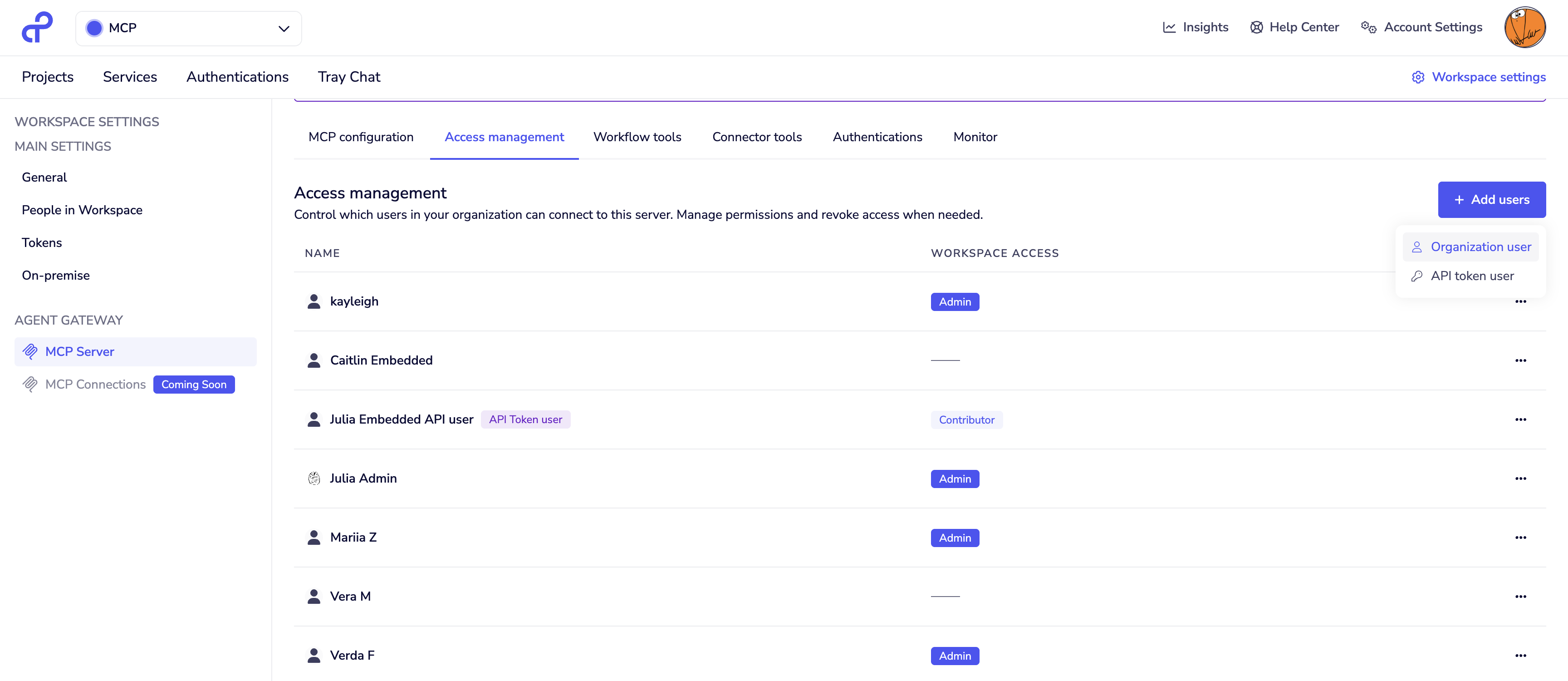
Adding users
Click + Add user and select the user type:
Organization user
- A regular Tray user with access to the Tray UI and their own personal workspace
- Authenticates via OAuth2
- Can execute tools using either service account or dynamic (user-provided) authentication
- Does not need to be a member of this workspace
API token user
- An API-only user with no access to the Tray UI or personal workspace
- Authenticates via API token
- Can only execute tools that use service account authentication — API token users have no personal credentials and therefore cannot use dynamic (user-provided) authentication
User list and role badges
The user list shows each user's type and, where applicable, their role within this workspace. Users who have been added to the workspace (or who hold an organization-level role) will display a role badge:
| Badge | Workspace access |
|---|---|
| Owner | Full access — can view and edit tool workflows |
| Admin | Full access — can view and edit tool workflows |
| Contributor | Can view and edit workflows in this workspace |
| Viewer | Can view workflows in this workspace |
| (no badge) | MCP execution access only — cannot view or modify the underlying workflows |
Users with a workspace role can do more than execute tools — they can also view or modify the workflows that power them. Consider this carefully when granting workspace membership alongside MCP access. If you want users to execute tools without any visibility into the underlying implementation, ensure they are added only via Access Management and not as workspace members.
Users can be removed from the access list at any time from the same tab.
Choosing the right setup
| OAuth2 + organization user | API token + API token user | |
|---|---|---|
| Client auth method | OAuth2 | API token |
| User-provided tool auth | Supported | Not supported |
| Best for | End users executing tools on behalf of themselves | Automation, CI/CD, service-to-service |
| Workspace role visible | Yes, if workspace member | Yes, if workspace member |
Next steps
- Workflow Tools — add composite tools to your MCP server
- Connector Tools — expose individual connector operations
- User-provided Authentication — configure per-user OAuth on connector tools
- Connecting to Agent Gateway — step-by-step client connection instructions