Getting Started with Agent Gateway
Prerequisites and initial setup steps for using Tray Agent Gateway and MCP servers.
This guide covers the prerequisites and initial setup steps for using Tray Agent Gateway with MCP servers.
Prerequisites
Enabling MCP Capabilities
Before using Agent Gateway, an Organization Administrator must enable MCP capabilities for your organization.
To enable MCP:
- Navigate to Account Settings in the top-right menu
- Scroll to Tray AI Features and Capabilities
- Enable Tray AI Features (master toggle)
- Enable MCP Servers, enable AI applications to connect to your Tray workspaces via MCP
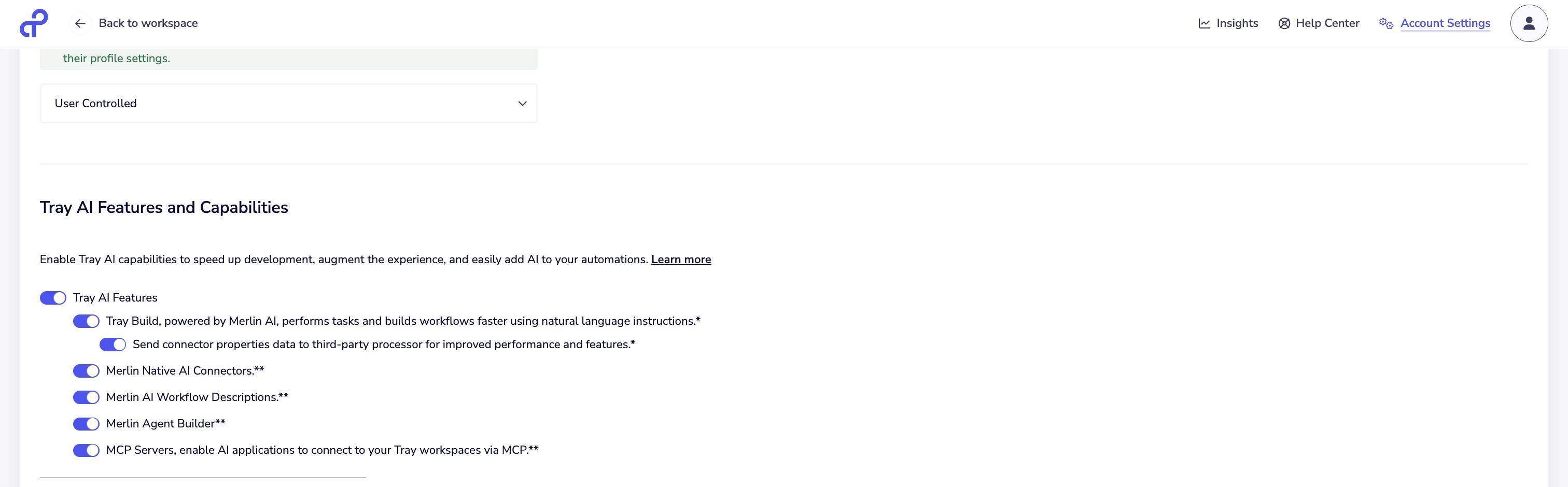
Only Organization Administrators can enable MCP capabilities. Once enabled, Workspace Administrators can configure MCP servers within their workspaces.
User Permissions
Workspace Administrator Role - Required to:
- Enable and configure MCP servers
- Add Workflow Tools and Connector Tools
- Access Agent Gateway settings in workspace settings
MCP User Access - To execute tools through a configured MCP server, a user must:
- Have an active Tray account within the same organization
- Be explicitly added by a Workspace Administrator via the Access Management tab
Users do not need to be members of the same workspace as the MCP server — this allows a clear separation between tool builders and end users.
Technical Requirements
Supported AI Client (at least one):
- Claude Desktop
- VS Code with Claude extension
- Cursor
- Windsurf (Codeium)
- Any other MCP-compatible client
Development Environment:
- Node.js installed (for running Tray MCP client setup utility)
- Command line access
- Internet connection
Tray Platform Requirements:
- Active Tray.ai workspace
- Workspace ID (UUID from workspace URL)
- OAuth connection or API token
API token authentication does not support user-provided authentication. Users connecting via API token can only execute tools configured with service account credentials.
Finding Your Workspace ID
Your Workspace ID is a UUID in your workspace URL:
https://app.tray.io/workspaces/12345678-abcd-1234-ef56-0123456789ab/...
                               └──────────────────────────────────┘
                                        Workspace ID
Copy this UUID - you'll need it when configuring MCP clients.
Creating an API Token
API tokens authenticate MCP client connections to your workspace.
Organization admins create API tokens from Account Settings → Tokens → Create API user. The token must have appropriate permissions for the workspace where your MCP server is configured.
Store API tokens securely. Copy the token immediately when created - it won't be shown again.
For complete token creation and management instructions, see API Users & Tokens.
Tool Limits and Recommendations
Recommended Limits
15-20 tools maximum per MCP server
This recommendation is based on LLM performance:
- Better tool selection accuracy
- Faster agent response times
- Reduced hallucination risk
- Improved user experience
No hard technical limit exists, but exceeding 20 tools degrades agent performance.
Multiple Server Strategy
If you need more than 20 tools:
Create separate MCP servers for different use cases:
- Customer support tools server
- Sales tools server
- IT operations tools server
AI clients can connect to multiple MCP servers simultaneously.
Use different workspaces for team/project isolation:
- Each workspace has its own MCP server
- Better access control and governance
- Clear separation of concerns
Next Steps
With prerequisites complete:
- Configure MCP Server - Enable and set up your first MCP server
- Authentication and Access - Control who can execute tools and how they authenticate
- Add Workflow Tools - Create Composite Tools from workflows
- Add Connector Tools - Expose connector operations
- Connect AI Client - Configure your AI assistant