Connecting to Agent Gateway
Connect AI clients to your Tray MCP server using OAuth2 authentication or API token setup.
This guide walks you through connecting AI clients to your Tray MCP server. Once connected, AI assistants can discover and execute the Workflow Tools and Connector Tools you've exposed.
MCP supports API user token-based authentication or using your Tray Identity via OAuth2. You are able to use either authentication method depending on your needs.
Not sure which authentication method to use? See Authentication and Access for a guide on choosing between OAuth2 and API token, and for managing who can access your MCP server.
Agent Gateway is available on select plans. Contact your Customer Success representative or account team to verify your entitlement and enable Agent Gateway for your organization.
Prerequisites
Before connecting to Agent Gateway, ensure you've completed the Getting Started setup:
- Agent Gateway enabled - Organization-level MCP capabilities must be enabled
- MCP server configured - At least one Workflow Tool or Connector Tool set up in your workspace
- AI client installed - Download and install your preferred AI client
- MCP access - You must be added as a user in the Access Management tab of the MCP server. See Authentication and Access for details.
Secure authentication through client application platforms.
Currently supports:
- Claude Desktop (via custom connector)
Benefits:
- No manual token management
- User-scoped access
- One-click setup
Comparing Remote and Local MCP
| Feature | Remote MCP (OAuth2) | Local MCP (API Token) |
|---|---|---|
| Setup | One-click from AI client | Manual NPM utility configuration |
| Configuration | Hosted by Tray, no local setup | Local config files on your machine |
| Authentication | OAuth2 per user | API User token |
| Token management | Automatic via OAuth2 | Manual creation and rotation |
| Client support | Currently Claude Desktop (expanding) | All MCP-compatible clients |
| Best for | End users requiring user-provided authentication | Automation, CI/CD, service-to-service integrations |
Remote MCP Servers (OAuth2)
OAuth2 authentication uses remote MCP servers - MCP servers hosted by Tray and accessed over the network. Unlike local MCP configuration, remote MCP servers require no local setup.
Benefits:
- No local configuration - Connect directly from your AI client without manual setup
- Multi-user access - Each user maintains their own OAuth2 connection to the same MCP server
- No token management - Authentication handled automatically through OAuth2 flow
- Automatic token rotation - Security maintained without user intervention
Additional AI Client Support: OAuth2 authentication currently supports Claude Desktop. Support for additional AI clients (such as other desktop applications and platforms) is being expanded. If you would like to use Agent Gateway with a specific AI client, contact your Customer Success representative or account team to discuss your requirements.
Connecting via Claude Desktop
Connect to Tray's remote MCP server from Claude Desktop using OAuth2 authentication. Multiple users can access the same MCP server without sharing credentials.
Step 1: Access Connectors
- Launch Claude Desktop application
- Click the + icon in the compose area
- Select Manage connectors
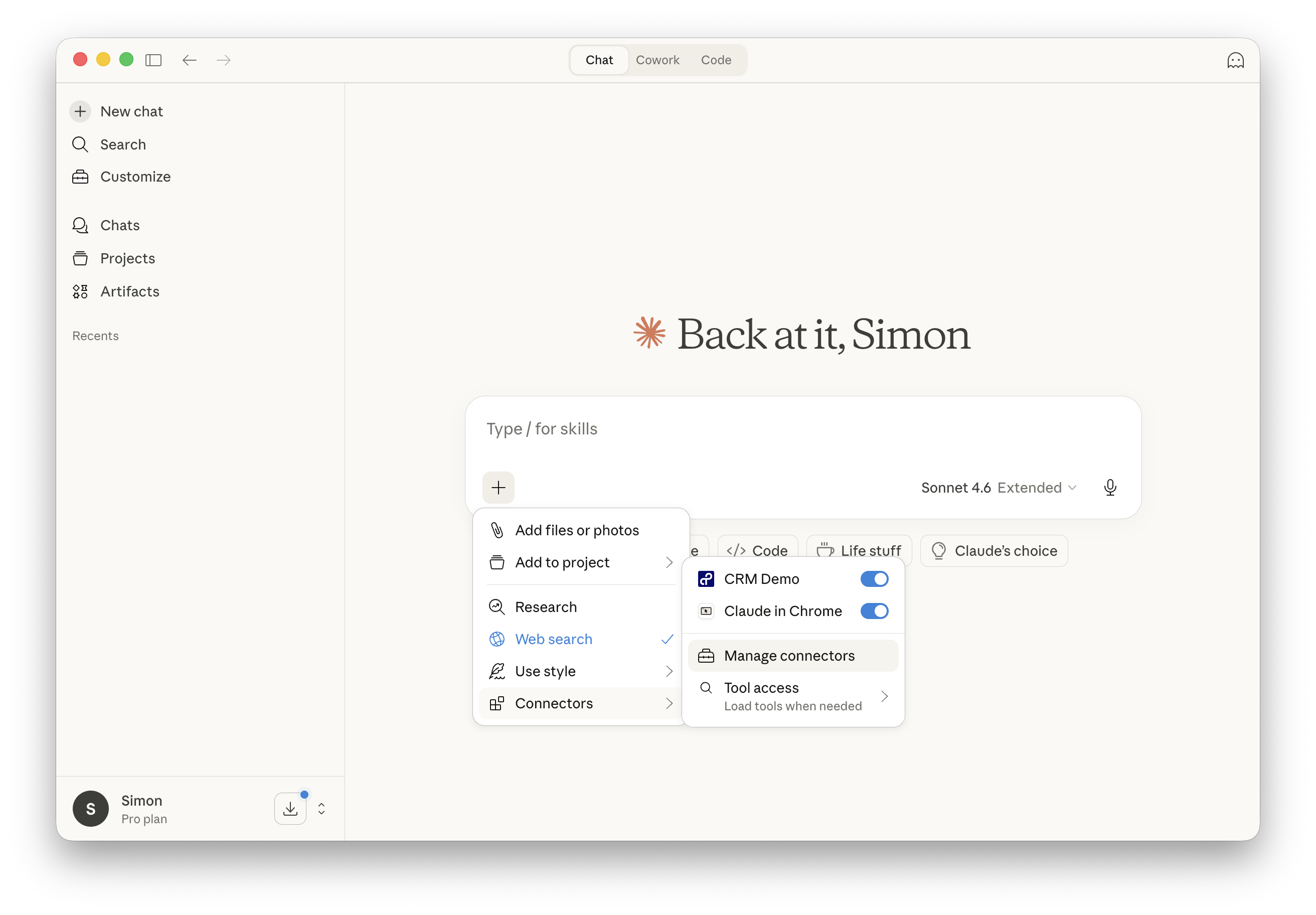
- Click the + icon, then Add custom connector
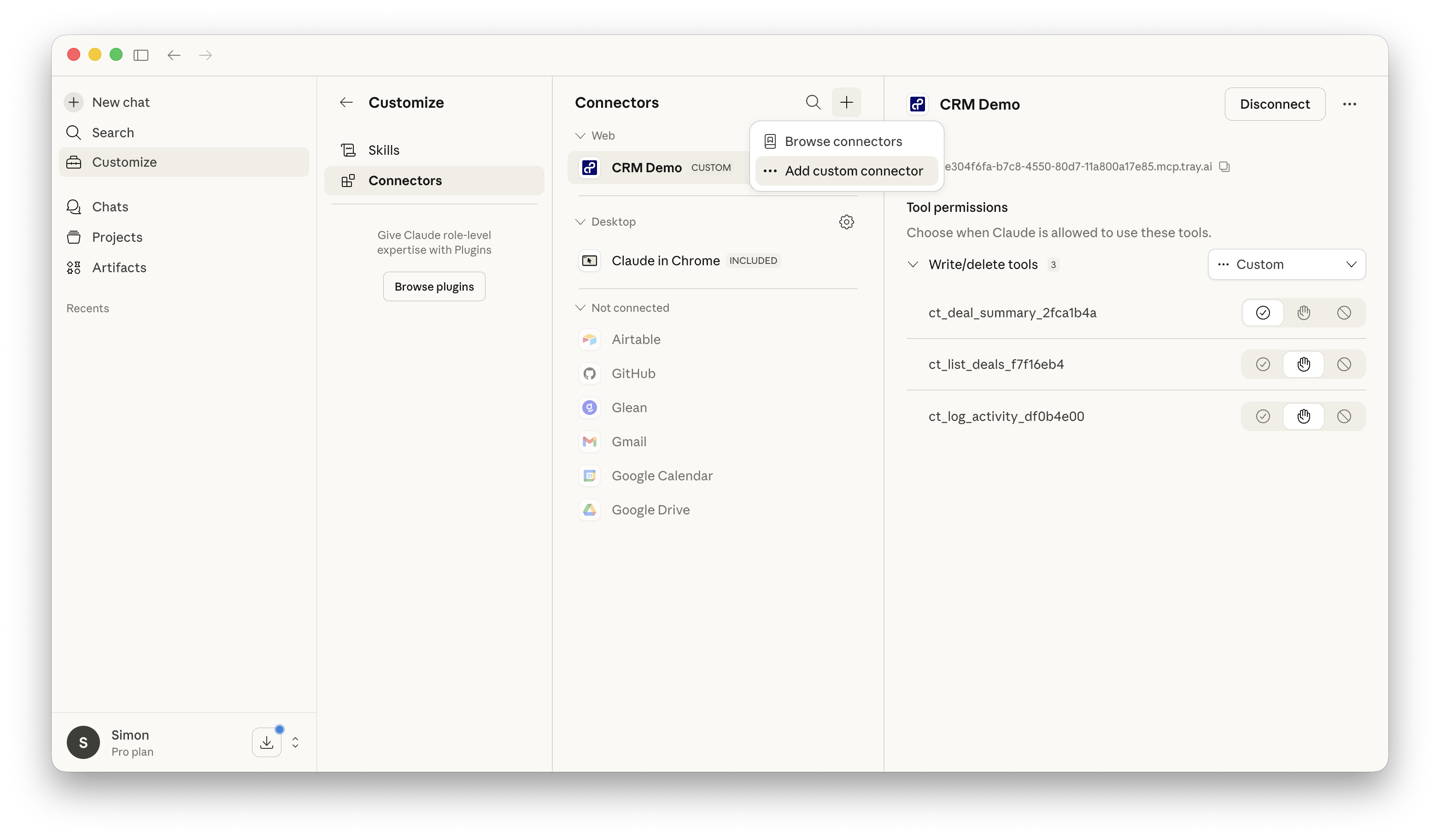
Step 2: Add Remote MCP Server URL
- Enter a Server Name (e.g., "Tray Agent Gateway Tool")
- Enter your Server URL - get this from MCP Server Configuration
- Click Connect and follow the OAuth2 authorization prompts
Managing Connections
Disconnecting
To revoke access:
- Click the + icon in the compose area
- Select Manage connectors
- Find Tray Agent Gateway Tool in the connectors list
- Click Disconnect or Remove
- Confirm when prompted
Your tools will immediately become unavailable to Claude.
Disconnecting removes Claude Desktop's access to your Tray workspace. You'll need to re-authorize the OAuth2 connection to reconnect.
Reconnecting
To reconnect after disconnecting:
- Follow the same connection steps to add the Tray remote MCP server again
- Complete the OAuth2 authorization process
- Your tools will be available immediately
You can connect to the same workspace or choose a different workspace during reconnection.
Refreshing Tool Changes
When Workflow Tools or Connector Tools are added, removed, or modified in your workspace's MCP server configuration:
- Disconnect the Tray Agent Gateway Tool in Claude Desktop
- Reconnect following the same OAuth2 setup steps
- Restart Claude Desktop to ensure tool list updates
Claude Desktop caches the tool list from remote MCP servers. You must disconnect and reconnect (or restart Claude) to pick up configuration changes made in your Tray workspace.
Troubleshooting
Issue: Authorization process fails or shows a timeout error
Solutions:
- Verify your Tray account credentials are correct and you have been added to the MCP server via the Access Management tab
- Ensure you're using a supported AI client
- Try the authorization process again
- Contact support if the issue persists
Issue: Tools Not Appearing After Connection
Solutions:
- Check that tools have proper descriptions and are marked as enabled
- Check tools have enabled status (green indicator) in workspace settings
- Disconnect and reconnect to refresh the tool list
- Restart Claude Desktop completely
- Review workspace settings to ensure tools are properly configured
Issue: Authentication Errors (403 Forbidden)
Solutions:
- User token doesn't have required permissions
- User may not have been added to the MCP server via the Access Management tab
- Contact your Customer Success representative to check user permissions
Issue: Tool Execution Failures
Solutions:
- Check workflow is published and enabled (Workflow Tools)
- Verify connector authentication is valid (Connector Tools)
- Review workflow/connector logs for errors
- Test manual execution in Tray platform
Local MCP Configuration (API Token)
API token authentication uses local MCP client configuration - the MCP client runs locally on your machine and connects to Tray using bearer tokens. This method works with all AI clients and is required for automation workflows.
Use API Token authentication when:
- Using AI clients other than Claude Desktop (VS Code, Cursor, Windsurf, etc.)
- Building automation workflows or CI/CD integrations
- Connecting to multiple Tray workspaces simultaneously
- You need advanced configuration control
API token authentication does not support user-provided authentication. Tools must use service account credentials only. See Authentication and Access for details.
Benefits:
- Universal client support - Works with all MCP-compatible AI clients
- Multiple workspace support - Connect to different workspaces from the same client
- Automation-friendly - Suitable for CI/CD pipelines and scripted workflows
- Full configuration control - Customize server names, endpoints, and settings
Additional requirements: Workspace ID (UUID), API token, and Node.js installed. The API token user must also be added to the MCP server via the Access Management tab. See Getting Started and Authentication and Access for details.
Supported AI Clients
API token authentication works with all MCP clients that support local MCP server configuration:
- Claude Desktop - Anthropic's desktop application
- VS Code - With Claude Code extension or MCP plugins
- Cursor - AI-powered code editor
- Windsurf - Codeium's AI IDE
- Any other MCP-compatible client with local configuration support
Using the Setup Utility
The Tray MCP setup utility automates client configuration. It handles config file locations, formats, and authentication setup for all supported clients.
Interactive Setup
Run the utility:
npx @trayio/tray-mcp
Follow the prompts:
-
Select client type (default: claude):
Supported clients: claude, cursor, windsurf, vscode Enter client type (default: claude):Press Enter for Claude Desktop or type the client name.
-
Enter Workspace ID:
Enter your Tray.ai Workspace ID (UUID from URL):Paste your workspace UUID.
-
Enter API Token:
Enter your Tray.ai API Token:Paste your API token (input is hidden).
-
Customize server name (optional):
Enter a name for this MCP server (default: tray-workspace):Press Enter for default or provide custom name.
-
Confirm if overwriting existing config:
⚠️ Server "tray-workspace" already exists in config. Do you want to overwrite it? (y/n): -
Configuration complete:
✓ Configuration successfully updated!
📦 Server "tray-workspace" has been added to your claude config.
⚠️ Please restart claude for the changes to take effect.
CLI Mode Setup
For automation or scripting:
npx @trayio/tray-mcp --workspace-id <UUID> --api-token <TOKEN> [options]
Available options:
| Option | Short | Description | Default |
|---|---|---|---|
--workspace-id | -w | Tray.ai Workspace ID (UUID) | Required |
--api-token | -t | Tray.ai API Token | Required |
--name | -n | Custom MCP server name | tray-workspace |
--client | -c | Target client (claude, cursor, windsurf, vscode) | claude |
--help | -h | Show help information | - |
Example:
npx @trayio/tray-mcp \
  --workspace-id 12345678-abcd-1234-ef56-0123456789ab \
  --api-token your-api-token-here \
  --client claude \
  --name "production-mcp"
CLI mode automatically overwrites existing configurations without prompting.
Configuration Details
Config File Locations
The setup utility writes to the appropriate config file for each client:
Claude Desktop:
- macOS:
~/Library/Application Support/Claude/claude_desktop_config.json - Windows:
%APPDATA%\Claude\claude_desktop_config.json
VS Code:
- Uses VS Code CLI command to register MCP server
Cursor:
- macOS:
~/Library/Application Support/Cursor/User/globalStorage/saoudrizwan.claude-dev/settings/cline_mcp_settings.json - Windows:
%APPDATA%\Cursor\User\globalStorage\saoudrizwan.claude-dev\settings\cline_mcp_settings.json
Windsurf:
- macOS:
~/.codeium/windsurf/mcp.json - Windows:
%USERPROFILE%\.codeium\windsurf\mcp.json
MCP Server URL Format
Your MCP server URL:
https://{workspace-id}.mcp.tray.ai
The setup utility constructs this URL automatically from your Workspace ID.
Verifying the Connection
After Configuration
-
Restart your AI client completely (quit and reopen)
-
Check for MCP server in client settings:
- Claude: Settings → Developer → Model Context Protocol
- VS Code: Check MCP server list
- Cursor/Windsurf: Check MCP settings
-
Test tool discovery:
- Ask your AI assistant "What tools do you have access to?"
- Verify your Workflow Tools and Connector Tools appear
- Try executing a simple tool
Testing Tool Execution
Simple test:
User: "What Tray tools can you use?"
AI should list your exposed tools with descriptions.
Tool execution test:
User: "Use the [tool name] tool to [do something]"
AI should recognize the tool and execute it with appropriate parameters.
Troubleshooting
Issue: MCP server not appearing in client
Solutions:
- Verify config file was updated (check file location)
- Ensure MCP server is enabled in workspace settings
- Restart client application completely
- Check for JSON syntax errors in config file
Issue: Connection refused or timeout
Solutions:
- Verify Workspace ID is correct
- Check API token is valid and not expired
- Ensure MCP server URL is accessible from your network
- Test URL in browser (should return MCP protocol response)
Issue: Tools Not Visible (AI client connected but no tools appear)
Solutions:
- Verify at least one Workflow Tool or Connector Tool is enabled
- Check tools have enabled status (green indicator) in workspace settings
- Refresh tool list in AI client
- Try disconnecting and reconnecting MCP server
Issue: Authentication Errors
Solutions:
401 Unauthorized errors:
- API token may be invalid or expired
- Recreate API token and update configuration
403 Forbidden errors:
- User may not have been added to the MCP server via the Access Management tab
- Verify the API token is valid and has not expired
Issue: Tool Execution Failures (Tool found but execution fails)
Solutions:
- Check workflow is published and enabled (Workflow Tools)
- Verify connector authentication is valid (Connector Tools)
- Review workflow/connector logs for errors
- Test manual execution in Tray platform
Issue: Configuration Issues
Solutions:
Setup utility fails:
- Ensure Node.js is installed (
node --version) - Check network connectivity
- Verify write permissions for config directory
- Try running with elevated permissions if needed
Multiple workspaces:
- Run setup utility multiple times with different server names
- AI clients can connect to multiple MCP servers simultaneously
- Use descriptive names to differentiate servers
Advanced Configuration
Multiple MCP Servers
Connect to multiple Tray workspaces or environments:
# Production workspace
npx @trayio/tray-mcp \
  --workspace-id <prod-uuid> \
  --api-token <prod-token> \
  --name "tray-production"

# Development workspace
npx @trayio/tray-mcp \
  --workspace-id <dev-uuid> \
  --api-token <dev-token> \
  --name "tray-development"
AI clients can access tools from both servers.
Custom Server Names
Use descriptive names for different purposes:
tray-customer-support- Customer service toolstray-sales- Sales automation toolstray-it-ops- IT operations toolstray-readonly- Read-only data access
Updating Configuration
To update an existing MCP server connection:
- Run setup utility with same server name
- Provide updated Workspace ID or API token
- Confirm overwrite when prompted
- Restart AI client
Security Considerations
Protect your API tokens:
- Never commit config files to version control
- Use separate tokens for different environments
- Rotate tokens regularly
- Revoke tokens when no longer needed
Network security:
- MCP connections use HTTPS encryption
- API tokens are stored in client config files
- Ensure client machine is secure
- Use workspace isolation for sensitive operations
Next Steps
Now that your AI client is connected:
- Test your Workflow Tools and Connector Tools
- Monitor tool usage and agent behavior
- Iterate on tool descriptions for better AI understanding
- Add more tools based on usage patterns
- Review logs for errors or unexpected behavior
Related resources:
- MCP Server Configuration - Configure server settings
- Workflow Tools - Design effective Composite Tools
- Connector Tools - Expose connector operations
- Tray MCP NPM Package - Package documentation