MCP Server Configuration
Configure and manage MCP servers in your Tray workspace to expose workflows and connector operations as AI tools.
Configure an MCP (Model Context Protocol) server in your workspace to expose Tray workflows and connector operations as tools for AI assistants.
You must be a workspace administrator to configure MCP servers.
Accessing MCP Server Settings
- Navigate to Workspace Settings (gear icon in top-right)
- Under AGENT GATEWAY in the left sidebar, click MCP Server
- The following tabs are available:
- MCP configuration - Server settings
- Workflow tools - Manage Composite Tools
- Connector tools - Manage connector operations
- Access management - Control which users can execute MCP tools
- Authentications - View and manage authentications used across tools
- Monitor - Monitor MCP tool usage and execution activity
MCP Configuration Tab
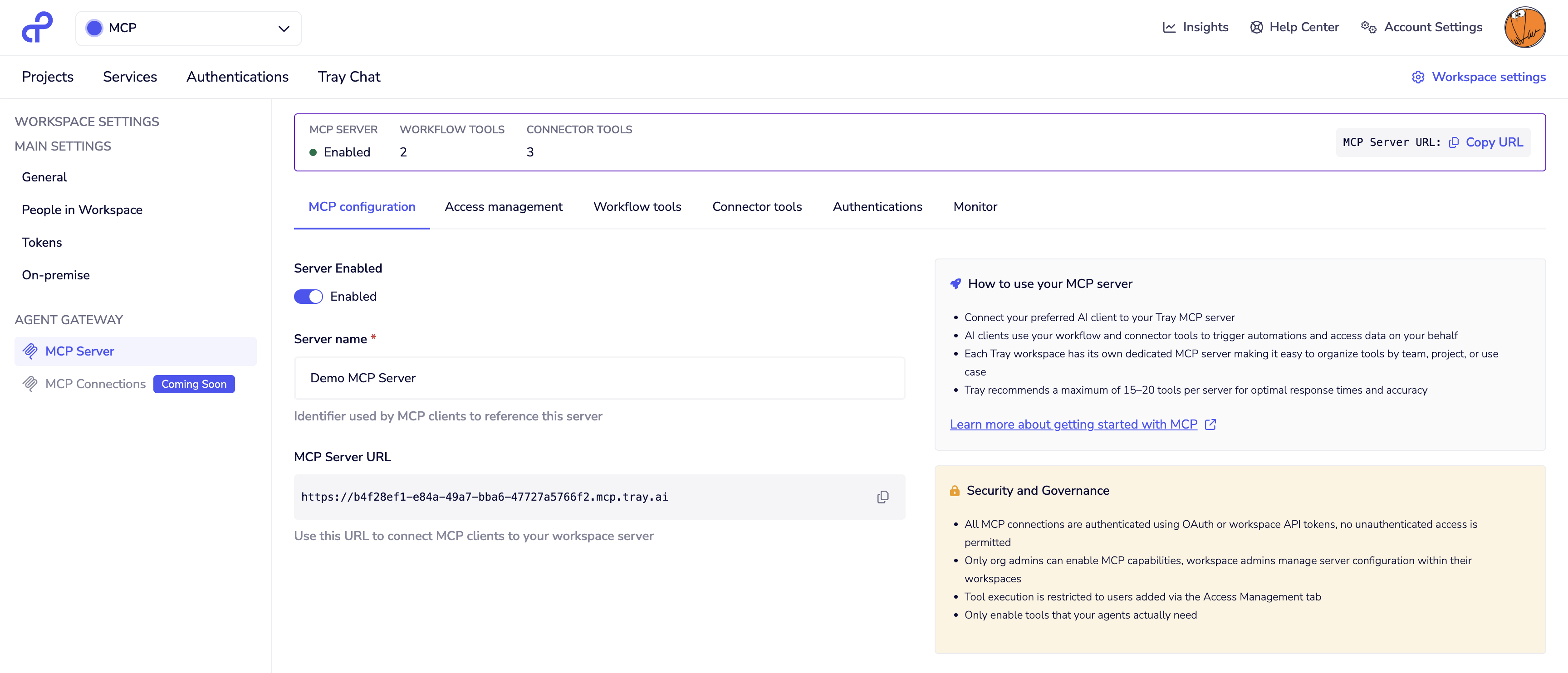
Toggle Server Enabled to turn the MCP server on or off for this workspace.
Server Name: Identifier for your MCP server (e.g., "Demo - MCP / A2A MCP Server")
MCP Server URL: Automatically generated URL in format https://{workspace-id}.mcp.tray.ai. Copy this URL to configure AI clients.
Statistics (top of page):
- MCP SERVER: Enabled/Disabled status
- WORKFLOW TOOLS: Count of exposed Composite Tools
- CONNECTOR TOOLS: Count of exposed connector operations
Access Management Tab
Control which users can execute tools on this MCP server.
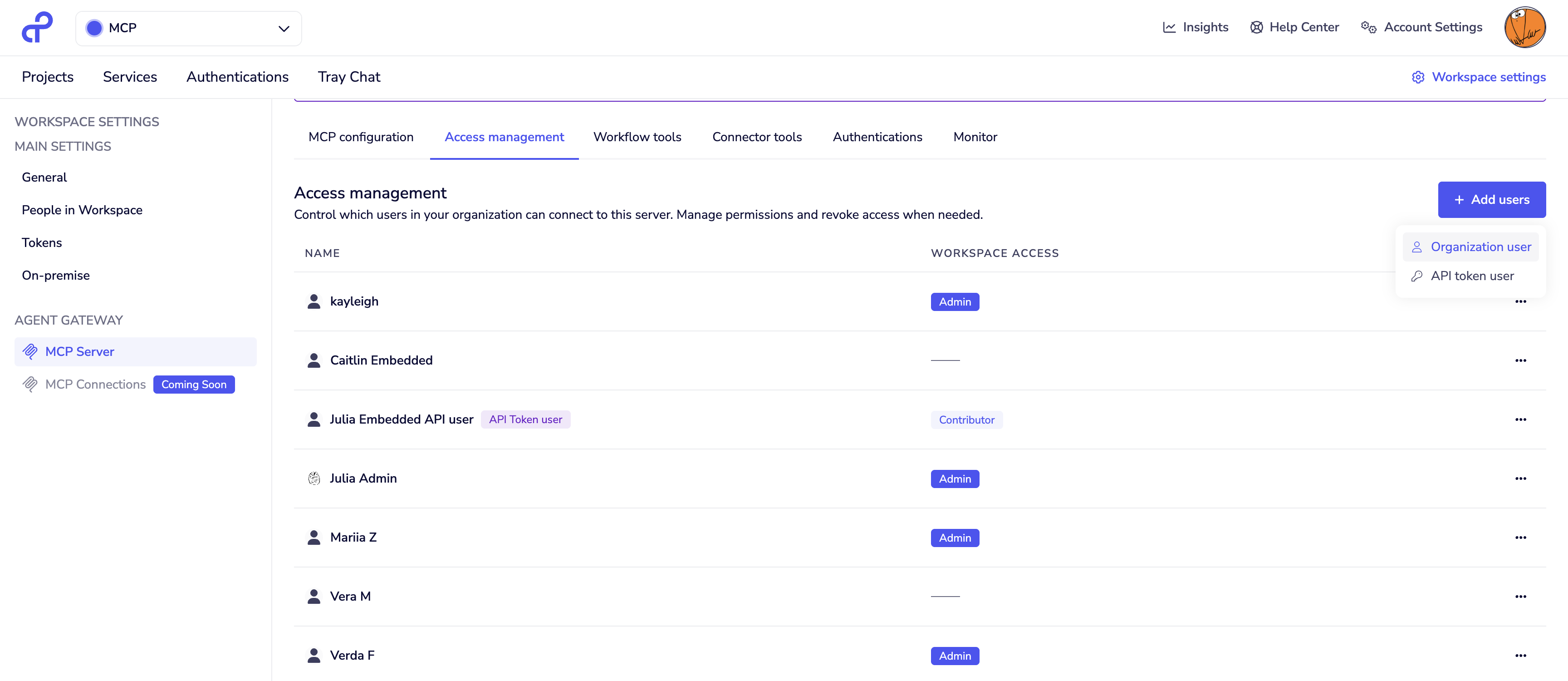
Click + Add user and select the type of user to add:
Organization user
- A regular Tray user with access to the Tray UI and their own personal workspace
- Authenticates via OAuth
- Can execute tools that use either service account or user-provided authentication
- Does not need to be a member of this workspace
API token user
- An API-only user with no access to the Tray UI or personal workspace
- Authenticates via API token
- Can only execute tools that use service account authentication — API token users cannot provide their own credentials and therefore cannot use user-provided authentication
The user list displays all users currently granted access. Users can be removed at any time from the same tab.
User list and role badges
The user list shows each user's type (organization user or API token user) and, where applicable, their role within this workspace:
| Badge | Meaning |
|---|---|
| Owner | Full workspace access, including viewing and editing tool workflows |
| Admin | Full workspace access, including viewing and editing tool workflows |
| Contributor | Can view and edit workflows in this workspace |
| Viewer | Can view workflows in this workspace |
| (no badge) | Has MCP tool execution access only — cannot view or modify the underlying workflows |
Users with a workspace role (Owner, Admin, Contributor, or Viewer) can do more than execute tools — they can also view or modify the workflows that power them. Consider this when granting workspace membership alongside MCP access.
The warning feels important here because an admin might not immediately connect "adding someone to the workspace" with "giving them visibility into tool implementation.
Workflow Tools Tab
View and manage workflows exposed as Composite Tools.
Tool List:
- TOOL NAME - Workflow name as seen by AI clients
- STATUS - Enabled/Disabled indicator
- DETAILS - Tool description
- Actions menu (•••) - Manage individual tools
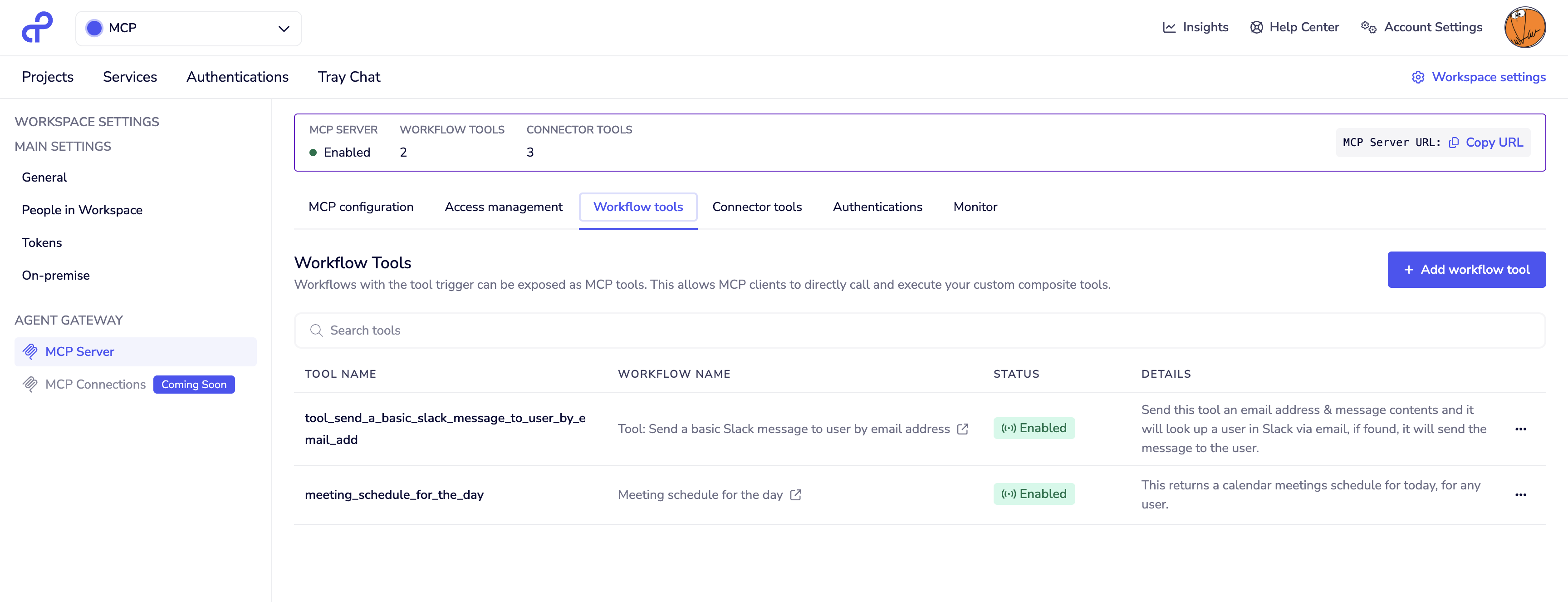
Use the search box to find specific tools. Click the actions menu (•••) to enable/disable or remove tools.
Connector Tools Tab
Expose individual connector operations as MCP tools.
Adding a Connector
- Click + Add connector
- Search or browse connectors by category
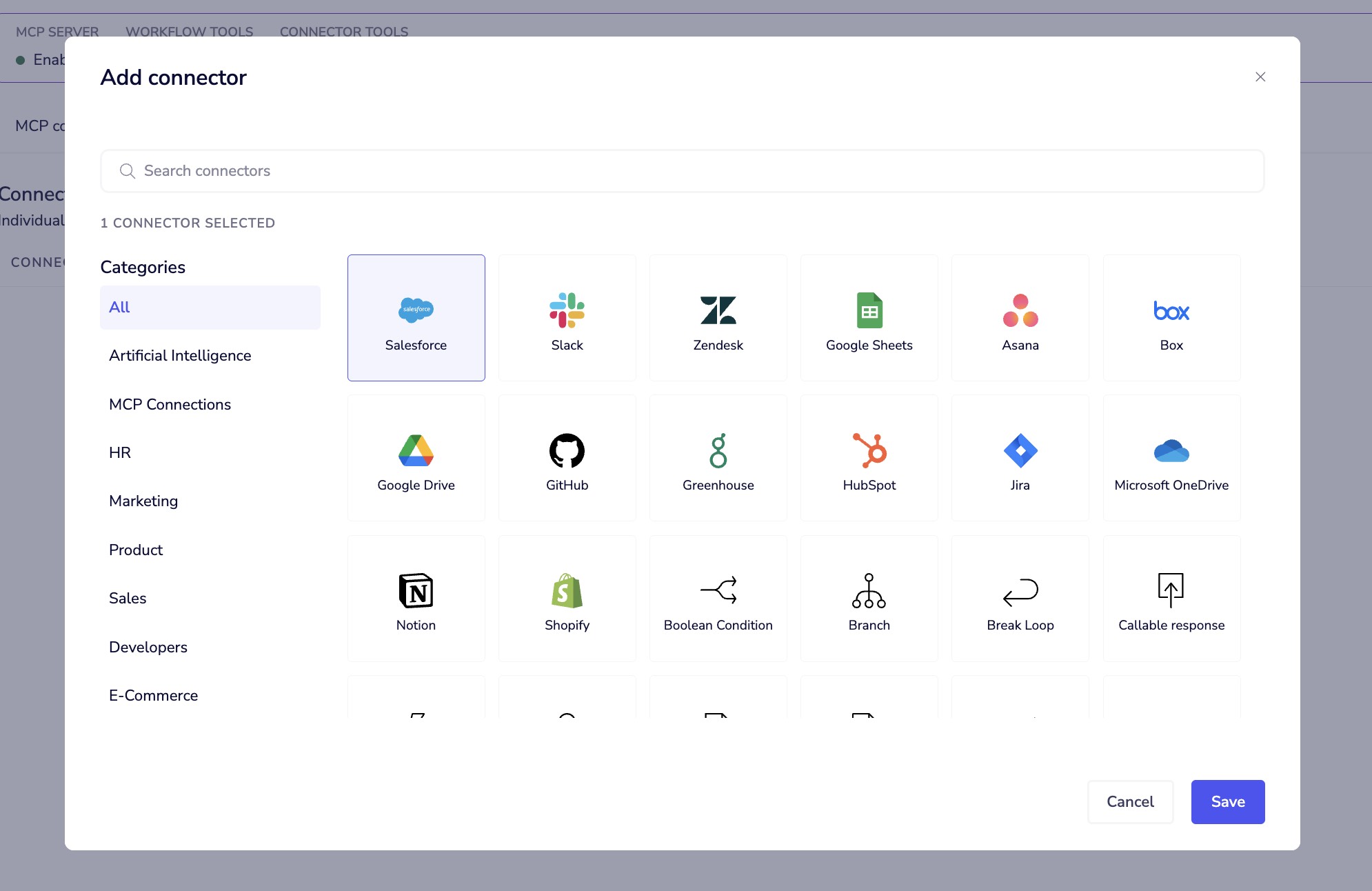
- Select a connector (e.g., Salesforce)
- In the "Manage operations" modal, select operations to expose
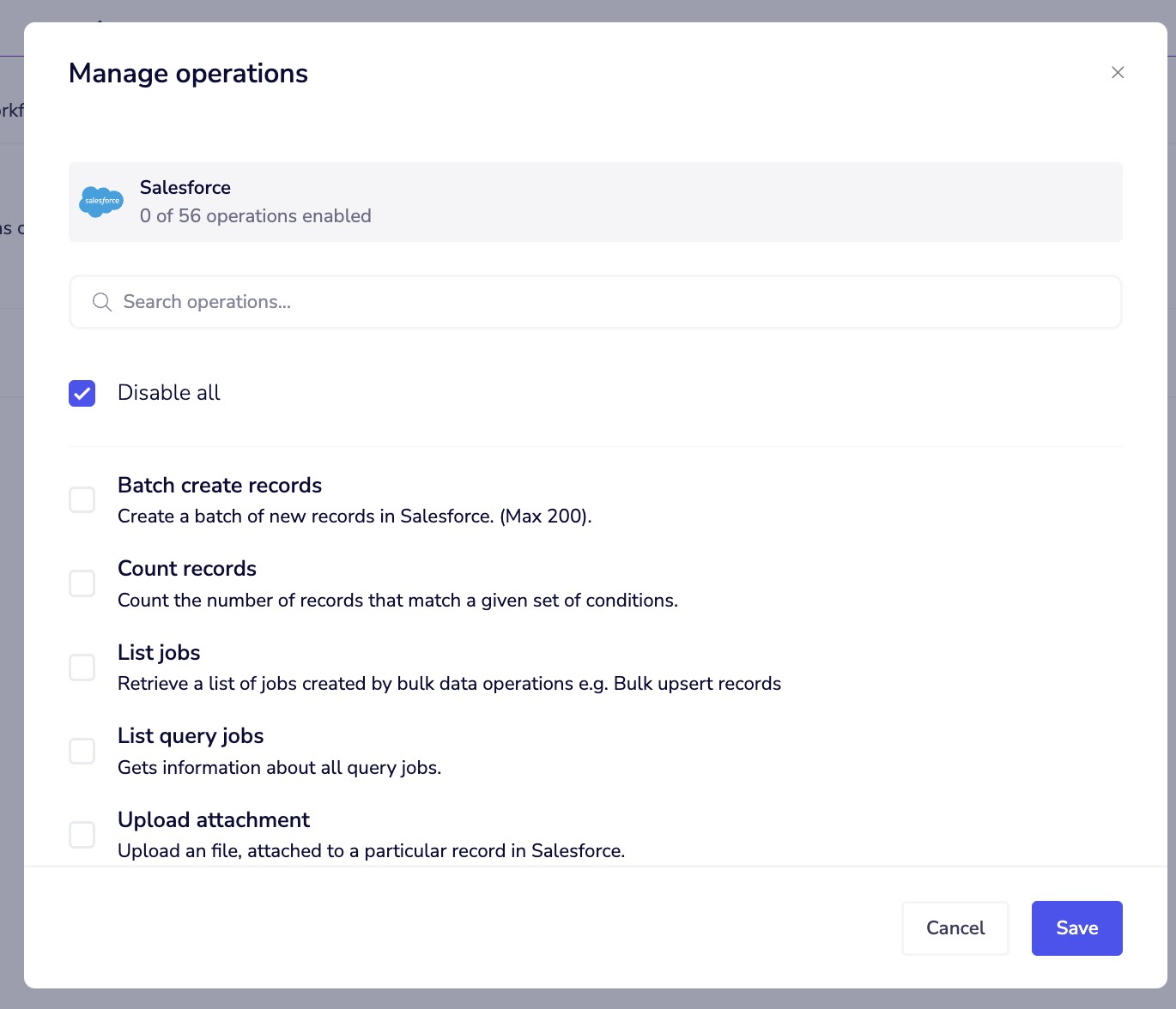
- Click Save
Managing Connectors
Once added, connectors display with:
- Connector name and icon
- Count of enabled operations
- Actions menu (•••) to manage operations or remove connector
Authentications Tab
A central view of all authentications used across your MCP tools.
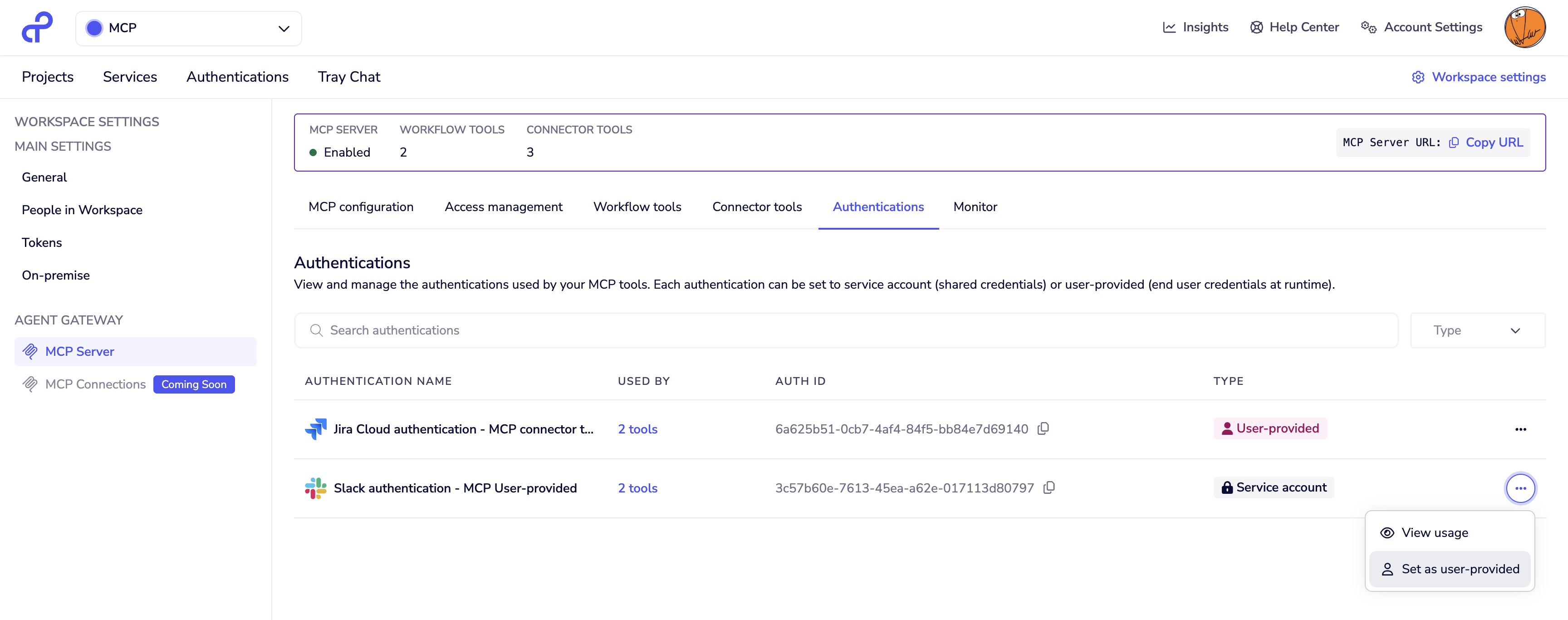
What it shows:
- All authentications configured across Workflow Tools and Connector Tools
- Whether each authentication is set to service account or user-provided
- Which tools each authentication is used by
What you can do:
- Review authentication coverage across all tools at a glance
- Switch an authentication between service account and user-provided
- Understand the impact of any change before making it — the tab shows which tools will be affected
See Dynamic authentication for more detail on the two authentication types.
Monitor Tab
A high-level overview of execution activity, health, and usage trends for this MCP server.
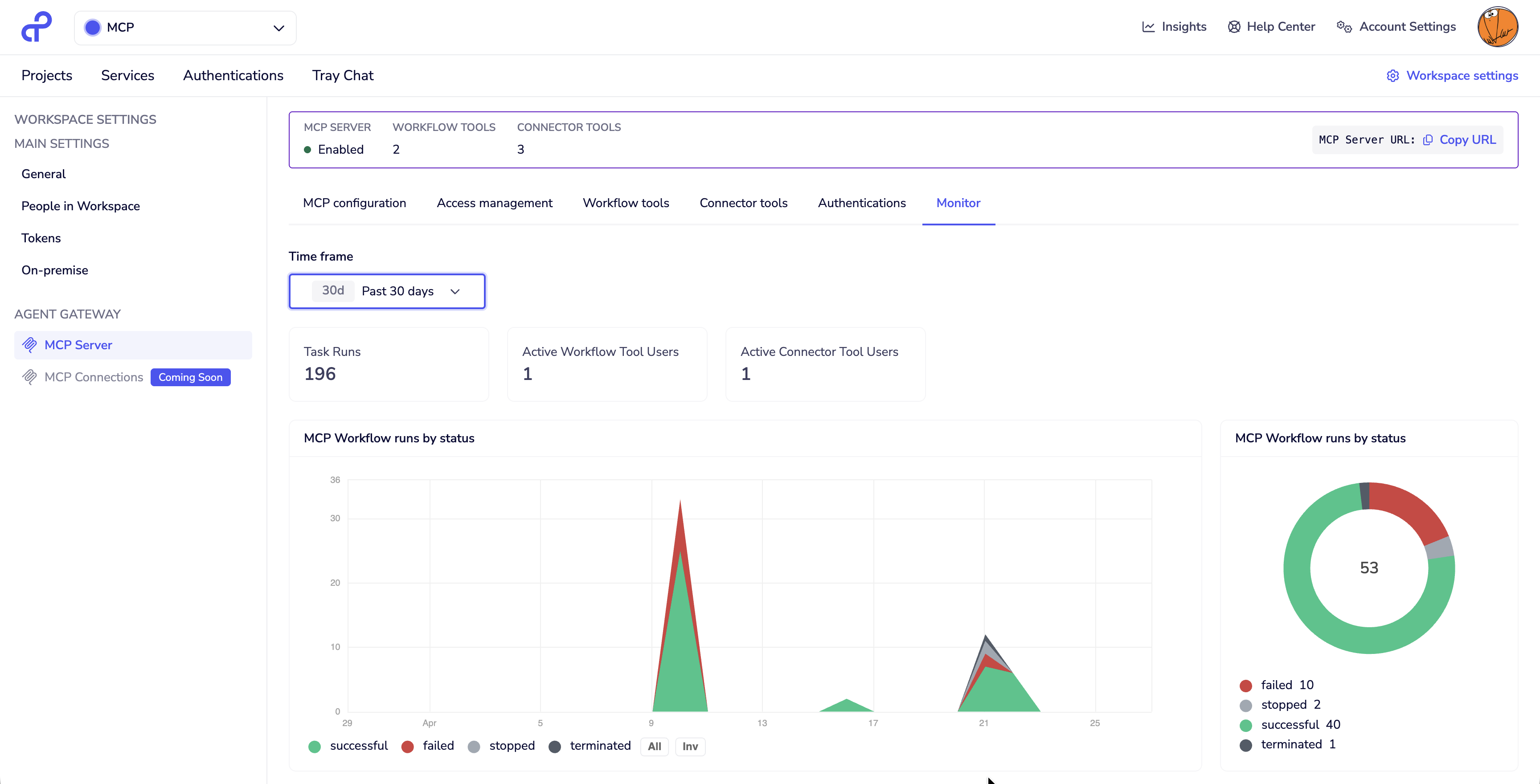
- Summary metrics — total task runs and active users for the selected period
- Execution status breakdown — successful, failed, stopped, and terminated executions for Workflow Tools and Connector Tools
- Runs breakdown by tool and by user, with click-through to per-tool success rates and failure trends
See Observability and Monitoring for full documentation.
Best Practices
Tool Limits: Keep total tools under 15-20 for optimal LLM performance.
Tool Descriptions: Write clear descriptions that explain what the tool does, when to use it, and what inputs are required.
Security: Regularly review and remove unused tools. Only expose operations AI agents actually need.
Troubleshooting
Server won't enable: Verify Agent Gateway is enabled for your organization and you have workspace admin permissions.
Tools not appearing in AI client: Check server is enabled, tools have enabled status, AI client is configured with correct MCP Server URL, and API token has necessary permissions.
Next Steps
- Authentication and Access - Manage user access and authentication types
- Workflow Tools - Design Composite Tools
- Connector Tools - Select connector operations
- Connecting MCP Clients - Configure AI clients
- User-provided Authentication - Configure per-user authentication for tools