









.DkNUKaKx_ZLAT4m.webp?dpl=dpl_Au634qxtCnaGHwTSpukv8FwHxmQD)








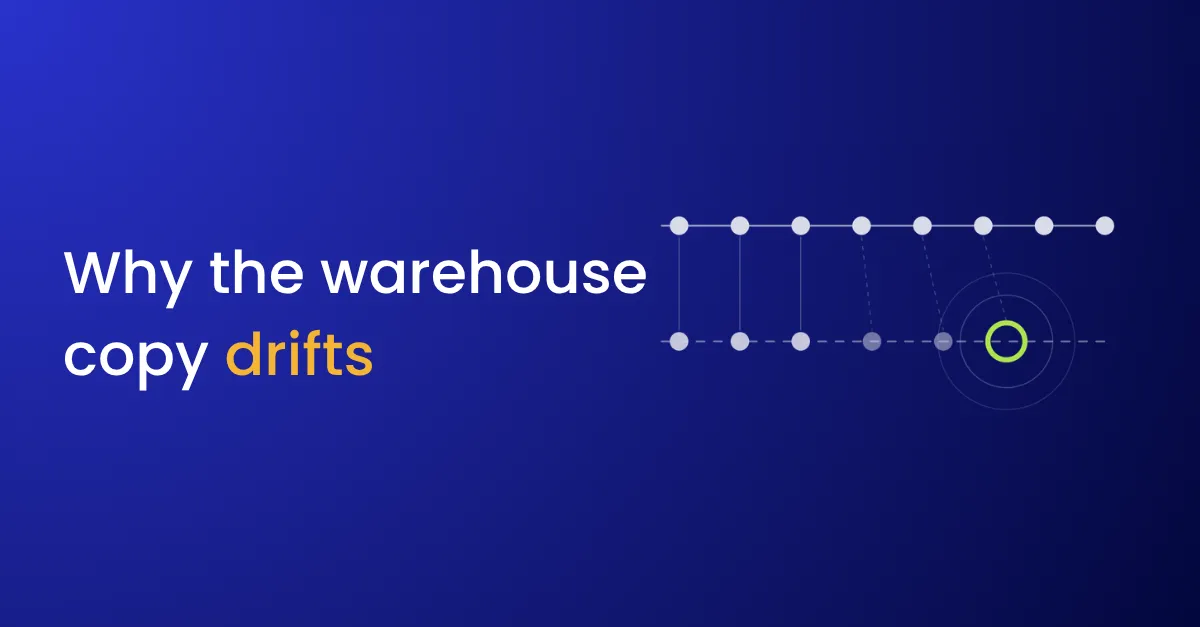

The board asks how pipeline looked at the end of March. The warehouse has a Salesforce opportunities table, but it was overwritten every night, so it only knows how pipeline looks today. The deal that slipped out of the quarter was edited in place. The one that was deleted is gone.
Copying Salesforce into Snowflake is stage two of a customer 360 and stage four of data integration. The first load is straightforward. The copy drifts afterwards.
What is a Salesforce to Snowflake sync?
A Salesforce to Snowflake sync copies Salesforce objects, such as accounts, contacts, opportunities and activities, into Snowflake tables, on a schedule or as records change. A sync built for reporting keeps history, handles deletes and merges, lands raw data before modeling it, and checks row counts on every run. The same design applies to BigQuery, Databricks and Redshift.
Where the copy drifts
- Each run overwrites the last. The table mirrors current state. Questions about change, such as pipeline at quarter end or how long deals sat in a stage, have no answer.
- Deleted and merged records disappear without a trace. A sync that only reads changed records never sees a delete. The warehouse keeps the record forever, or loses its history, depending on how the sync was built.
- Full extracts strain Salesforce. Pulling every record of every object uses API calls and takes hours, so teams run it less often, and the data gets older.
- A renamed field breaks the load. Someone renames a field or changes a picklist value in Salesforce. The load fails, or it succeeds with the column empty.
- Partial loads look like full ones. An API limit or a timeout stops a run part way. The job reports success, and some accounts show last week’s numbers.
- Formula fields change without a modified date. Salesforce calculates them when they’re read, so a changed formula value doesn’t mark the record as modified, and incremental syncs miss it.
What it costs
Every dashboard on the warehouse inherits the drift, and nothing shows it. Finance’s bookings and the CRM’s pipeline report disagree by a few percent, and reconciling them becomes someone’s monthly job.
The customer 360 inherits it too. Usage, support and billing data join to accounts by ID. A merged account that still exists in the warehouse splits its history across two records, and a health score built on it sees half the picture.
What to fix first
- Read changes, not everything. Use each object’s
SystemModstampto pull only records that changed since the last run, and run more often. - Keep history. Write each change as a new row with valid-from and valid-to dates, instead of overwriting.
- Handle deletes and merges explicitly. Query deleted records too (the API’s
queryAllreturns them), and use a deleted record’sMasterRecordIdto record which account it merged into. - Land raw, then model. Keep the raw extract and build reporting tables from it, so a modeling bug is fixed by rerunning the model.
- Check the schema before each run. Compare the fields Salesforce returns with the fields the warehouse expects, and tell the table’s owner when one is added, renamed or removed.
- Reconcile row counts on every run. Compare record counts in Salesforce with rows written, object by object, and fail loudly on any gap.
- Refresh formula fields on their own schedule. Pull them separately, or recompute them in the warehouse.
The guides to building a CRM to warehouse sync and schema change management have the prompts for each step.
What changed at Avid
AVID Property Group used to extract full Salesforce objects every day into its Google Cloud database for sales reporting. The extracts slowed Salesforce down, the reporting data was a day old, and workflows broke whenever a Salesforce field changed. After moving to small delta calls on Tray.ai, new Salesforce data arrives every 15 minutes, the data load fell by 73%, and new and deleted fields are detected automatically.
“Tray.ai has had a substantial impact on our efficiency, allowing us to enjoy significant time and cost savings.”
Where the sync fits
The warehouse copy depends on customer data matching. Without one customer ID, Salesforce accounts can’t join to billing, usage or support records. Once the data is joined in the warehouse, reverse ETL sends what the warehouse works out back to the CRM. Reverse ETL vs ETL covers how the two directions differ. For all seven steps of data integration, see the data integration process.


